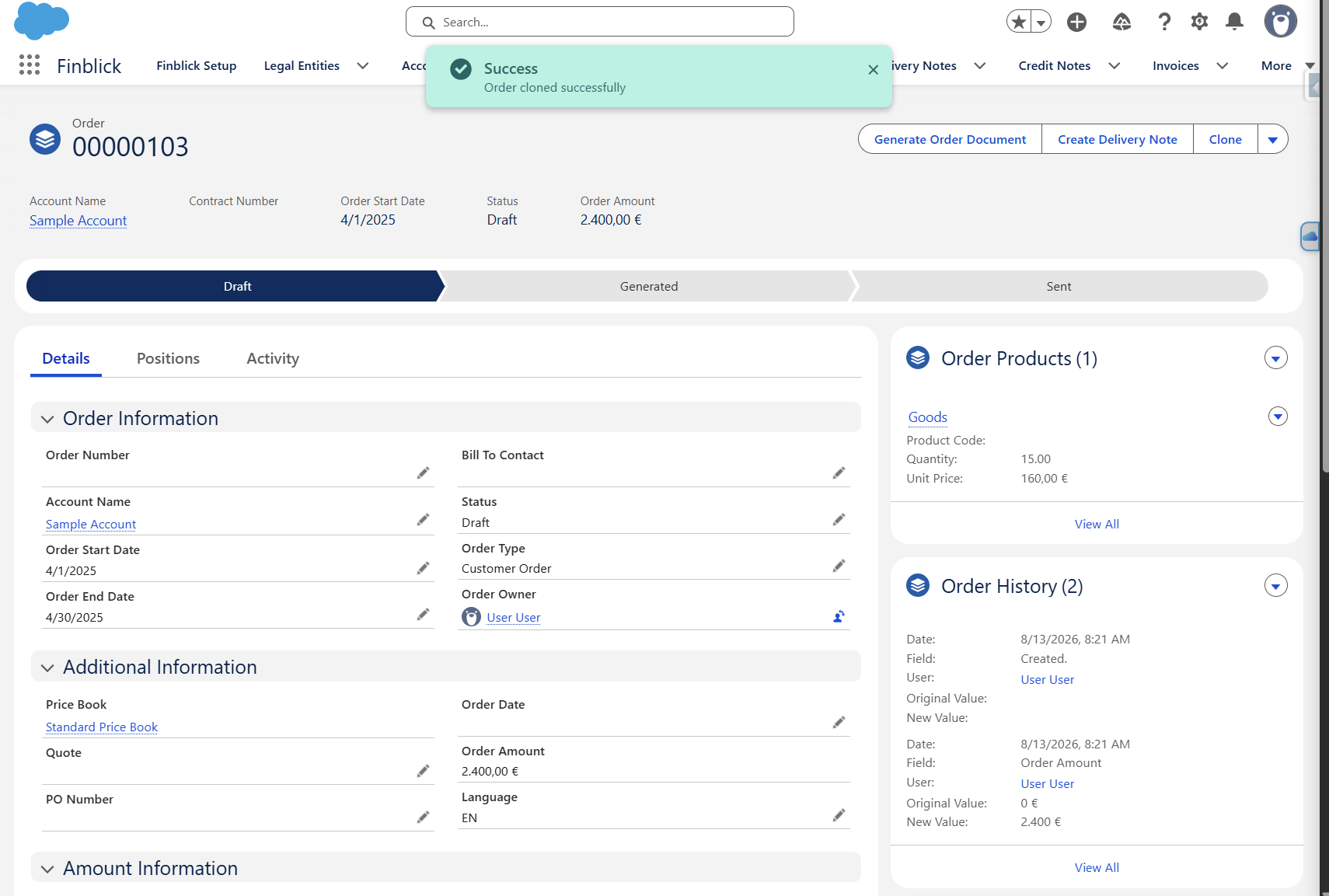
The Clone quick action allows copies of existing Quote, Order, Invoice, Credit Note, Self-Billing Invoice, and Delivery Note records to be created together with their related records. This makes it possible to quickly create a new document based on an existing record without manually entering the same information again.
When a record is cloned, the following related records and information are copied:
- Document Attachments
- Positions (Lines)
- Discounts
- Global Price Adjustments
- Record fields, with the exception of Document Date and Due Date
The Clone quick action is added by default to the Invoice, Credit Note, Self-Billing Invoice, and Delivery Note record pages. For Quotes and Orders, the quick action must be added manually to the corresponding record page.
Step-by-Step Guide to Adding the Clone Action to Quotes and Orders #
- Open an existing Quote or Order record.
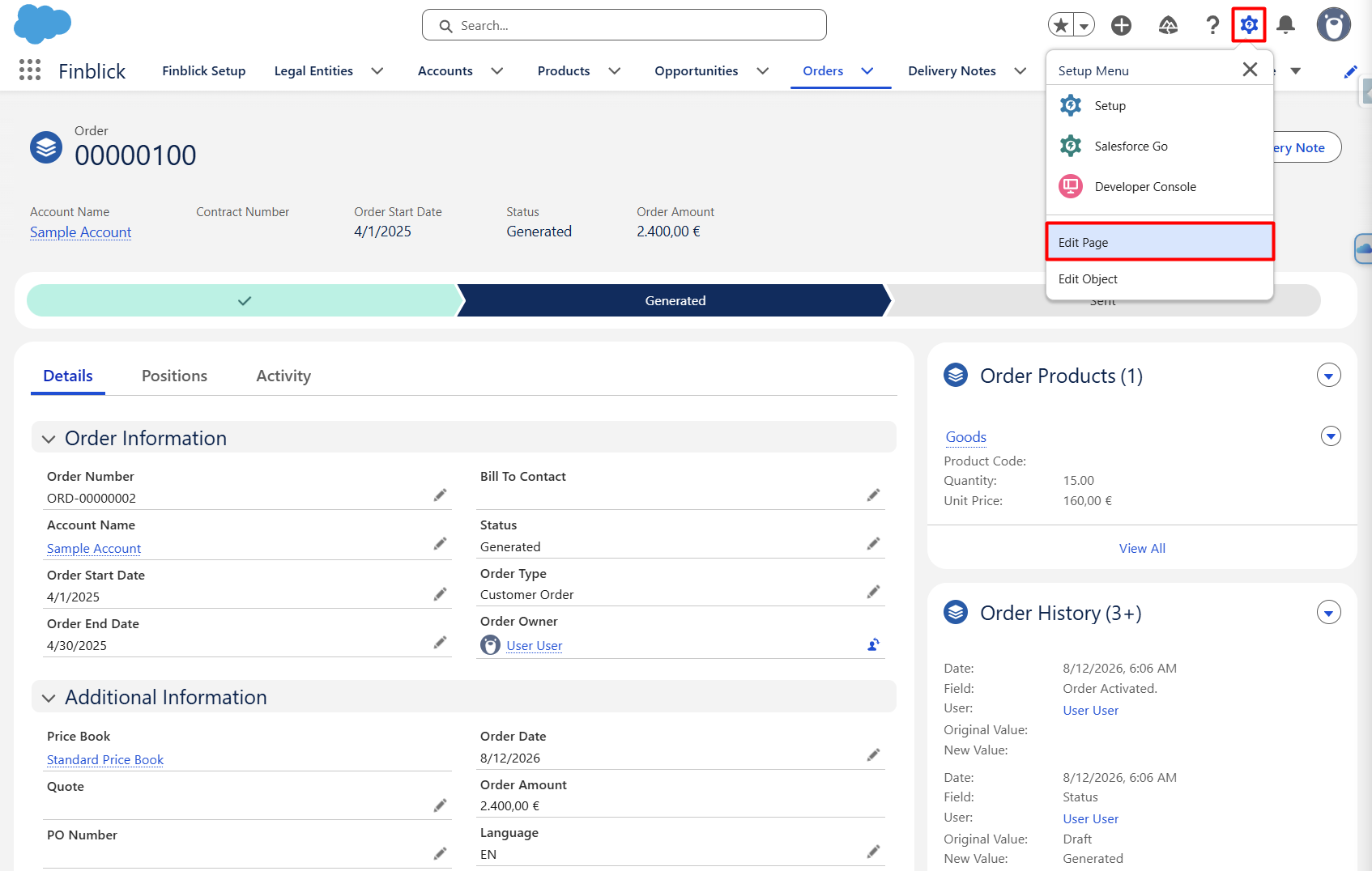
- Click on the gear icon and select Edit Page.
- The Lightning App Builder will be opened for the corresponding record page:
- Add the Clone Action.
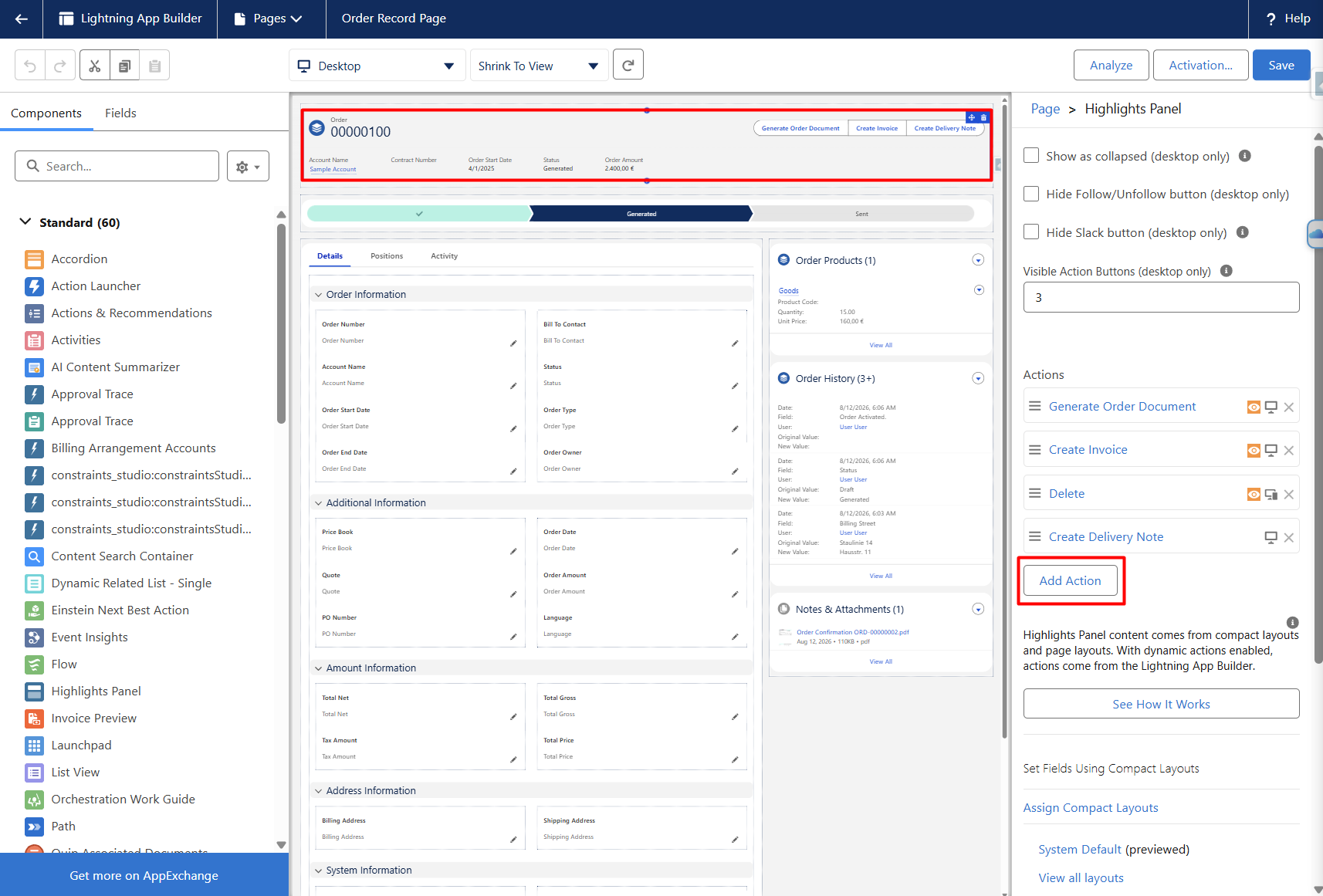
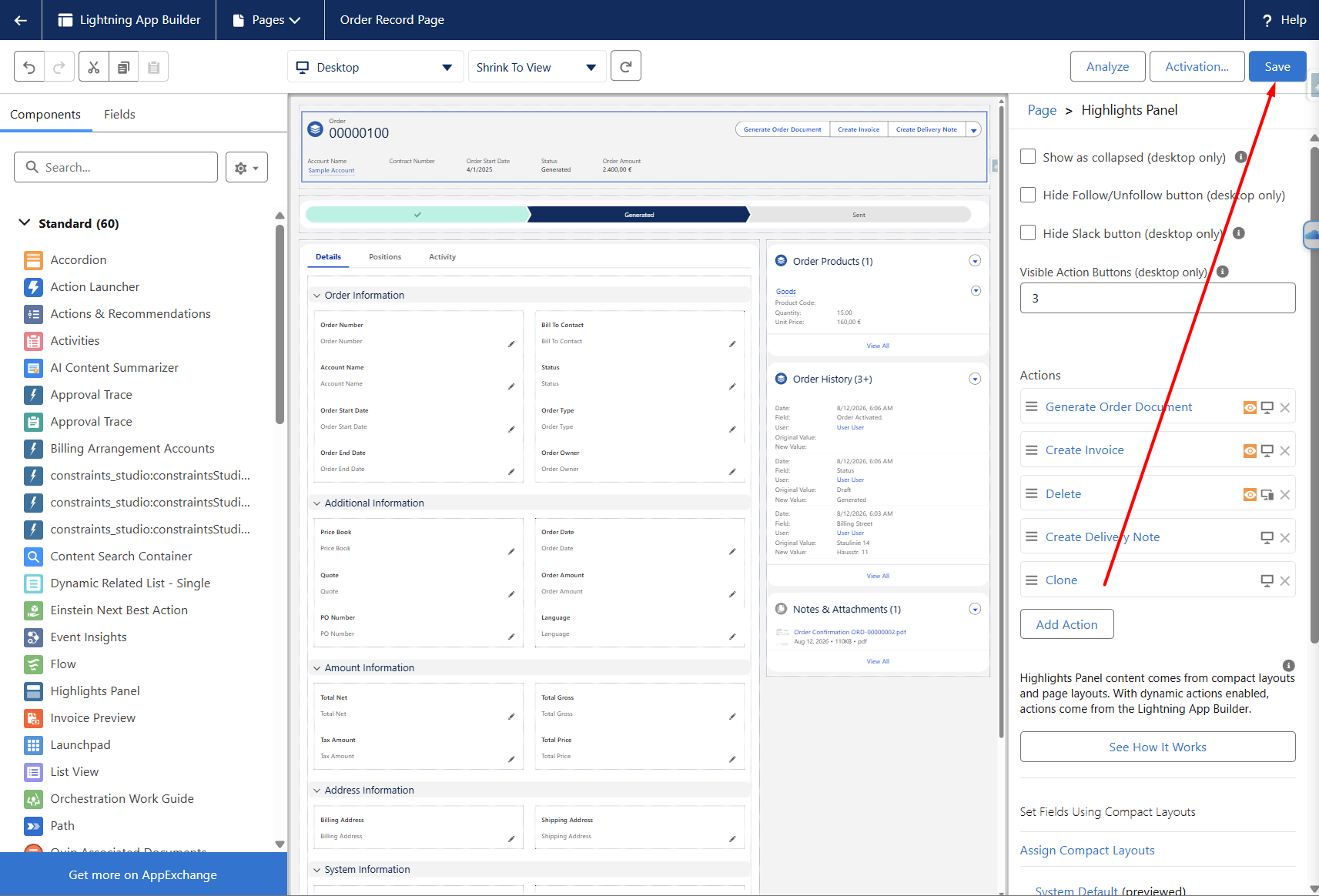
- In the Lightning App Builder, select the Highlights Panel component.
- In the component properties, press the Add Action button:
- Add the Clone action to the list of available actions:
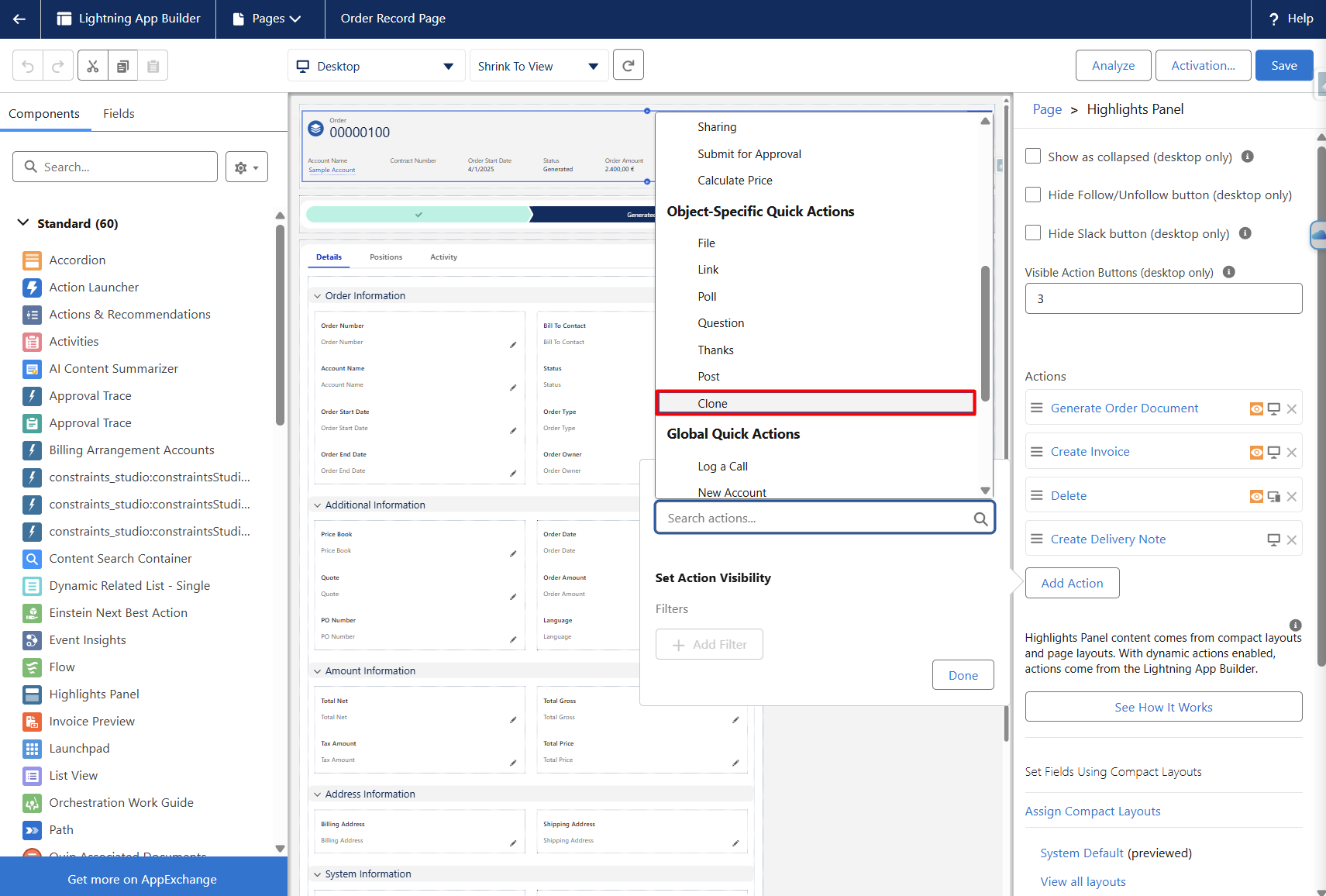
The action can be positioned according to the desired order of the buttons.
- Save and Activate the Page
- Click Save to save the changes.
- If the Lightning Record Page is not already activated, activate it for the appropriate users or applications.
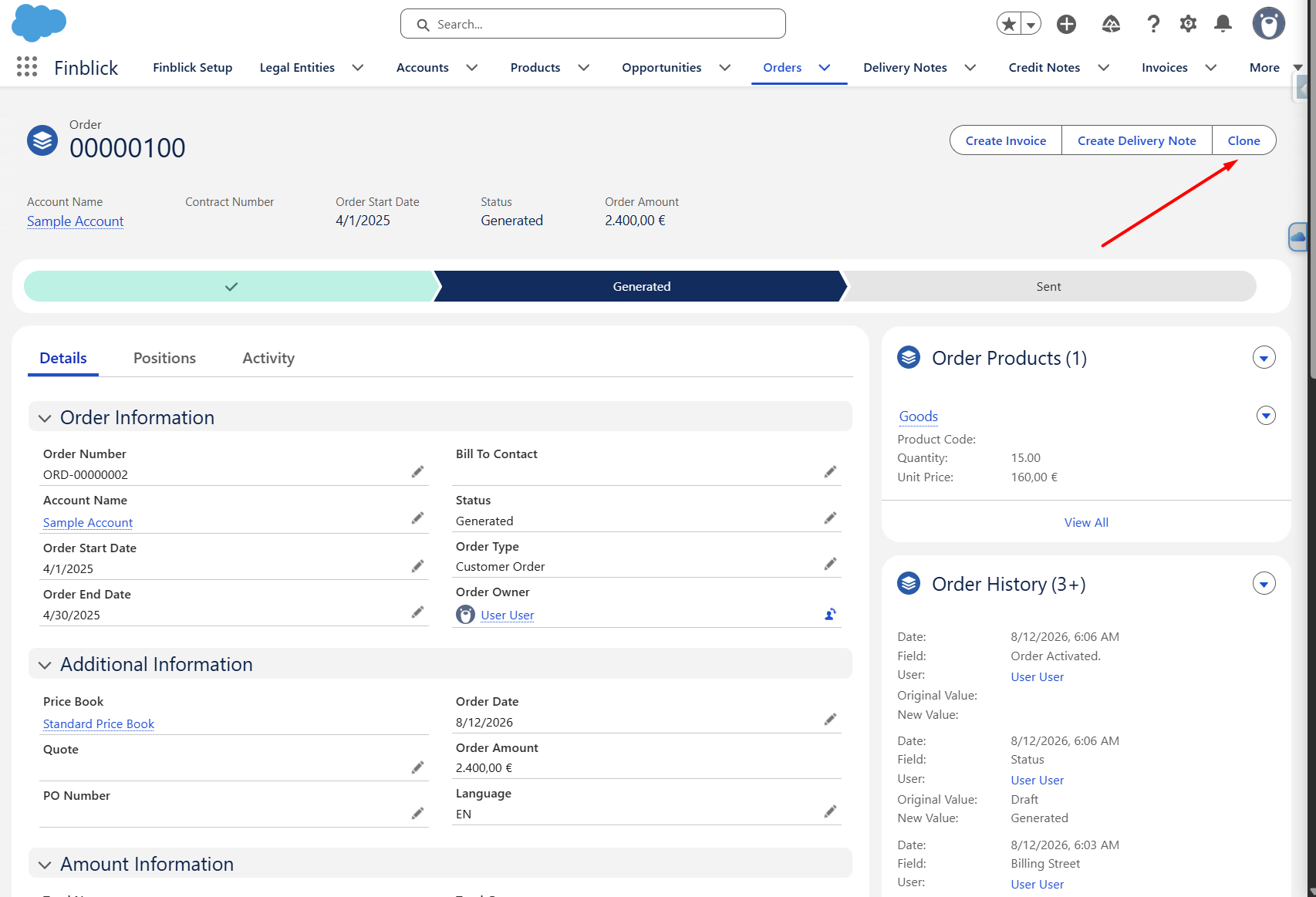
- The Clone action will now be available on the Quote or Order record:
Using the Clone Action #
- Open a Quote, Order, Invoice, Credit Note, Self-Billing Invoice, or Delivery Note record.
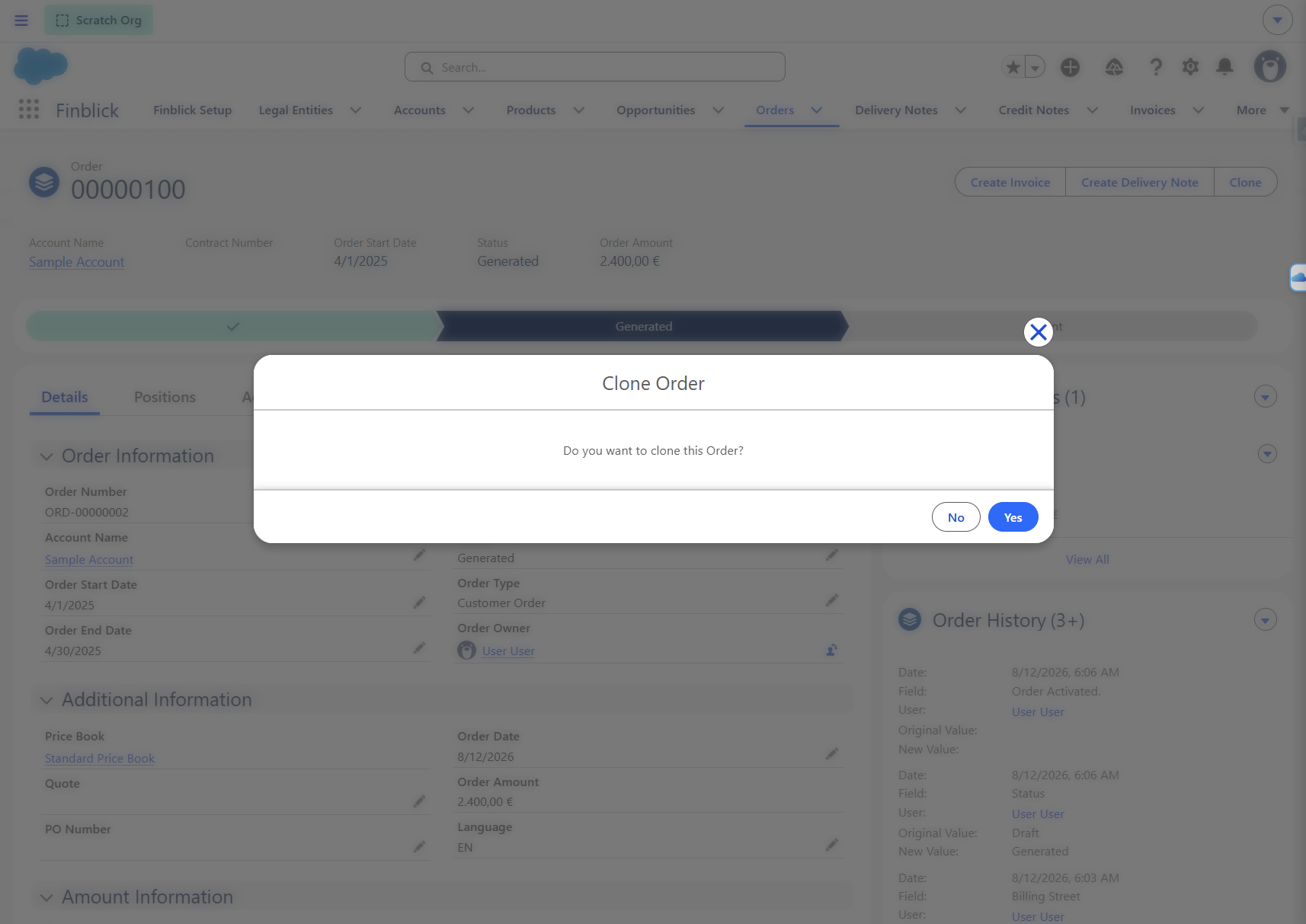
- Click Clone and confirm the operation:
- A new record will be created based on the selected record.
- The cloned record can then be reviewed and adjusted before continuing with the document generation process: