
The Partial Invoicing feature allows creating different Invoice Types directly from an Order using the Create Invoice quick action. This includes the creation of Down Payment Invoices, Partial Invoices, and Final Invoices based on the Order Confirmation document. This functionality ensures that invoices can be issued progressively throughout the fulfillment of an Order, according to business requirements.
Step-by-Step Guide to adding the “Create Invoice” Quick Action to the Order Page Layout #
- In the Finblick application, navigate to the Order Object:
- Click New to create an Order record.
- Add the Create Invoice quick action:
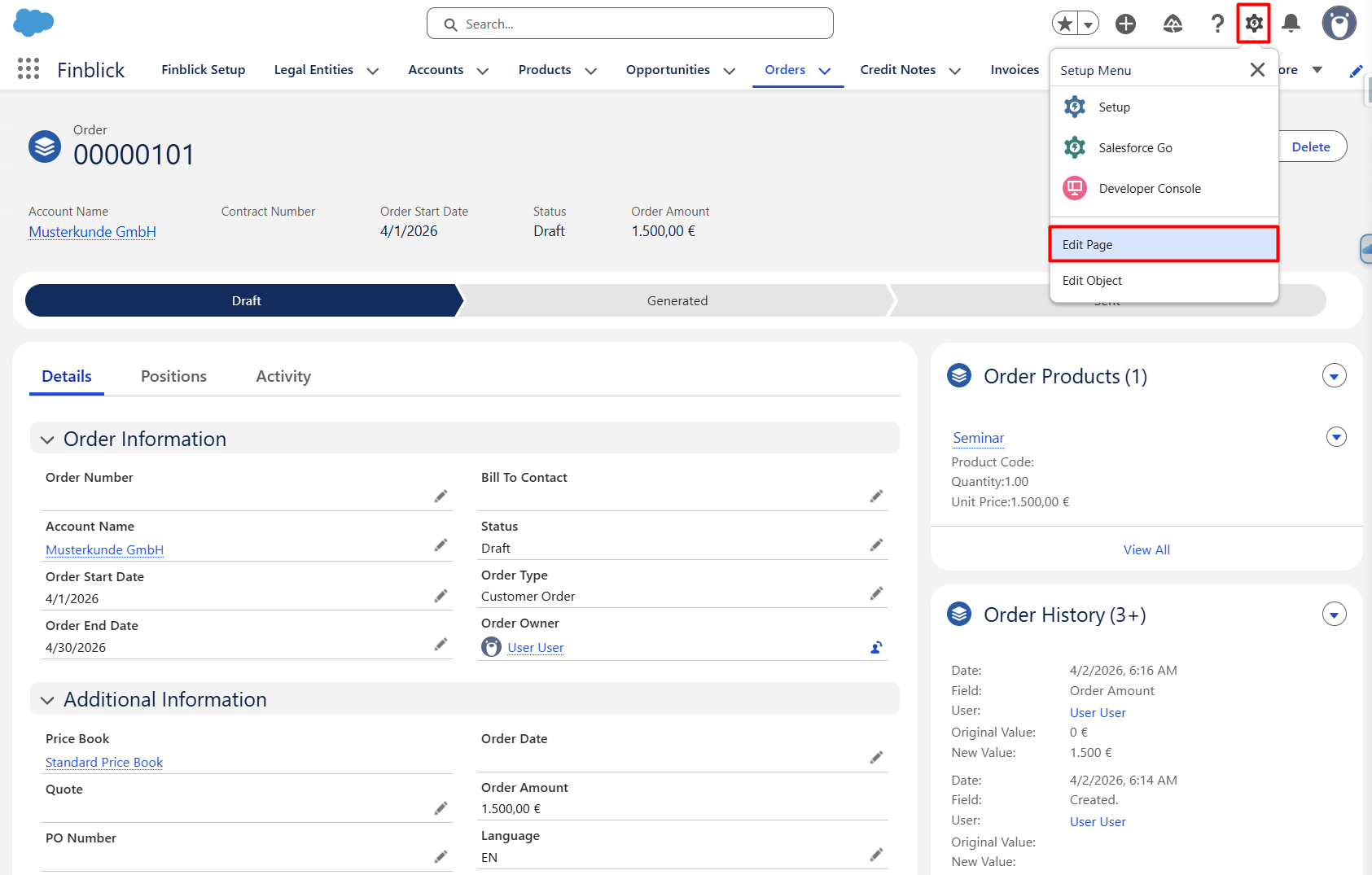
- Click the small gear icon in the top right.
- Select Edit Page to configure the Order page.
- Add the necessary Quick Action:
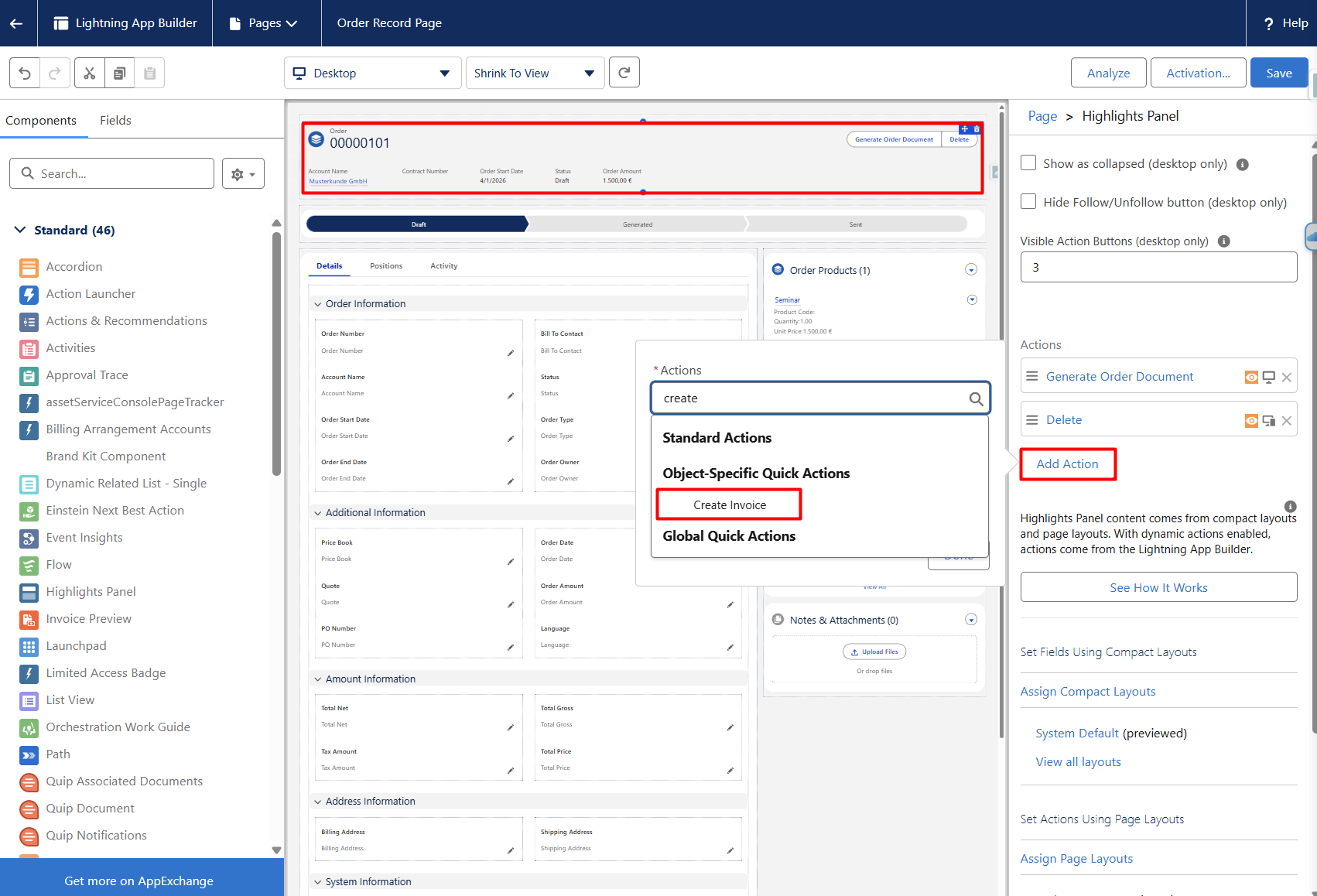
- Go to the top-level container with the available actions.
- Click Add Action.
- Select the following quick action: Create Invoice.
- Click Done.
- Save and activate the page:
- Now just click Save in the top right corner.
- Perform the page activation, assign it as Org Default for Desktop and Phone (if it’s not activated yet), click Save.
Step-by-Step Guide to creating Invoices using the “Create Invoice” button #
- Navigate to the Order record:
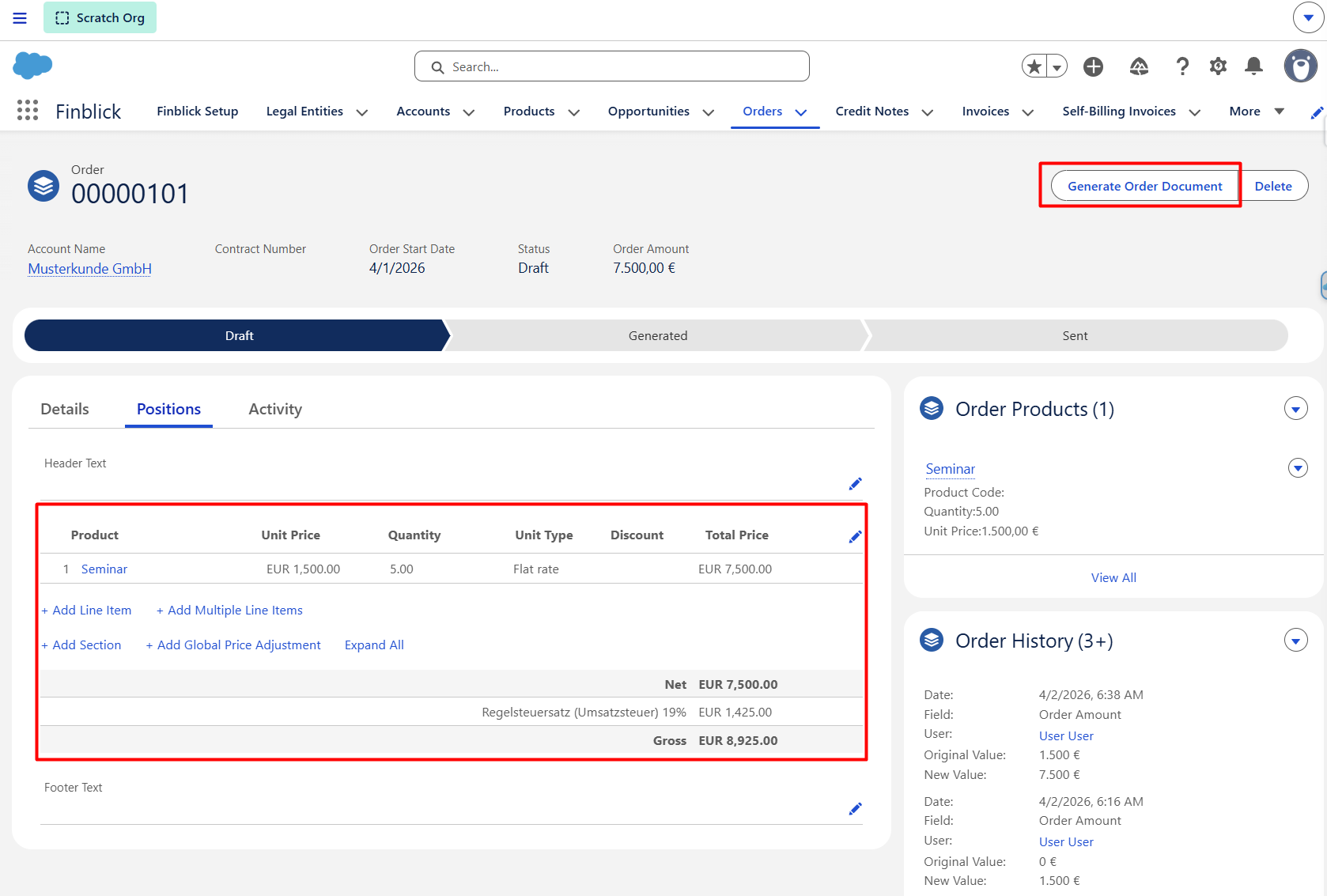
- Navigate to the Positions tab (check Configure UI And Generate The First Document article) and add a Product.
- Generate the Order Confirmation document.
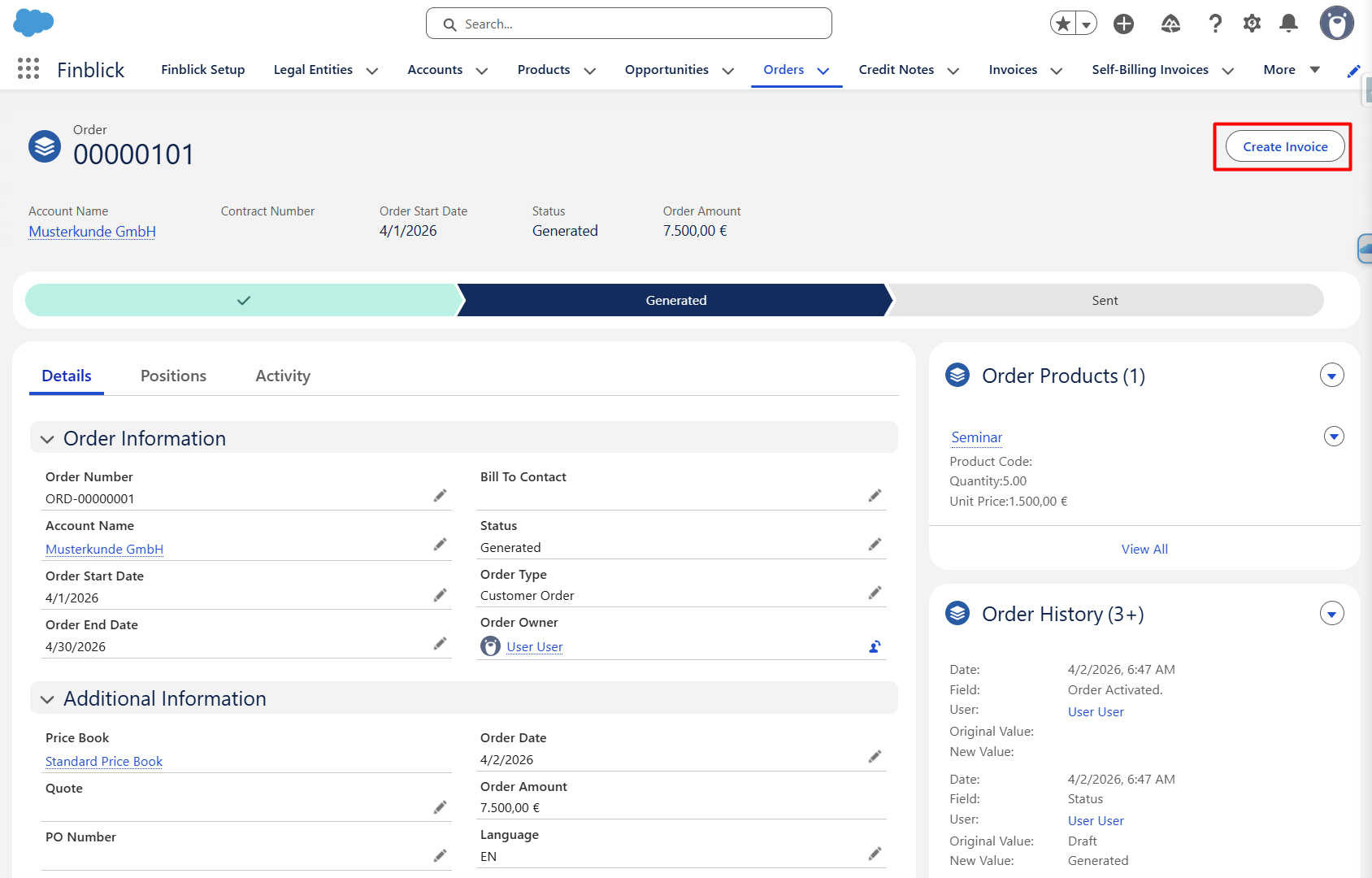
The Create Invoice button becomes available once the Order Confirmation document is generated. When pressed, a modal window where the Invoice Type can be selected will be opened:
- Click on the Create Invoice button:
- Select the desired Invoice Type:
- Down Payment Invoice
- Partial Invoice
- Final Invoice
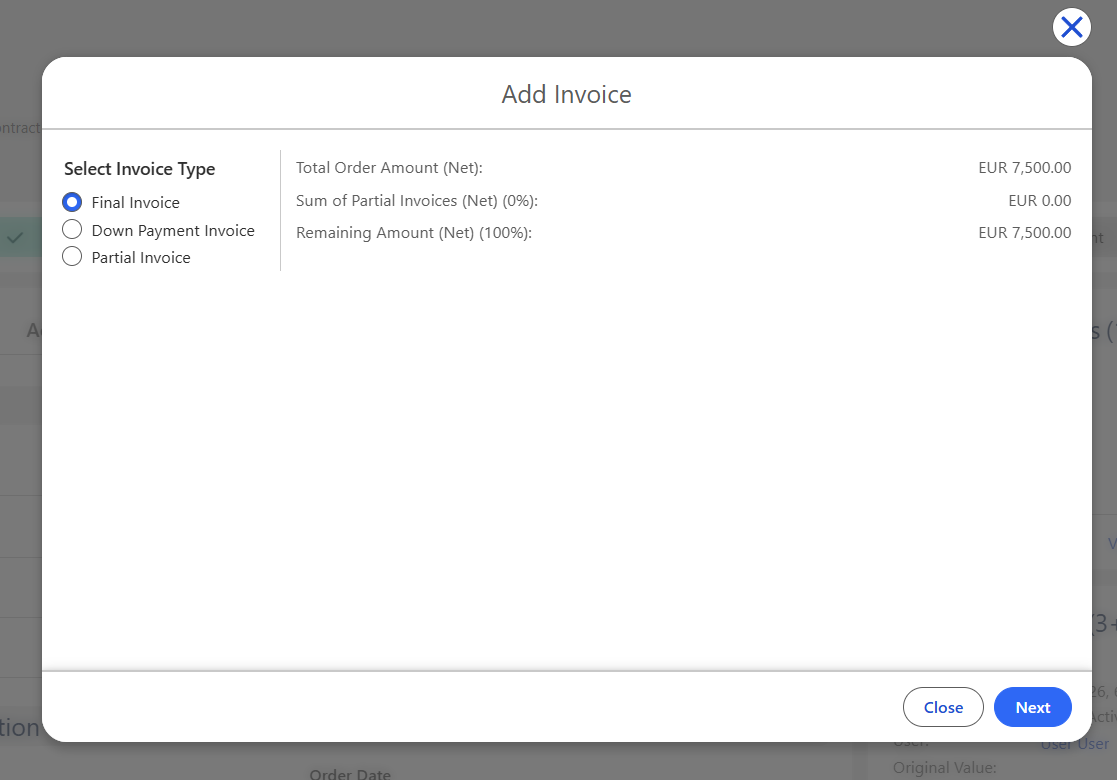
- Enter required information depending on the selected Invoice Type:
- Down Payment Invoice:
- Select Percentage or Fixed Amount.
- Enter the appropriate value.
- Partial Invoice:
- Select the products and quantities to include in the Partial Invoice.
- Final Invoice:
- No manual selection is required.
- The all or remaining Order Confirmation lines will be included automatically.
- Click Next.
- Down Payment Invoice:
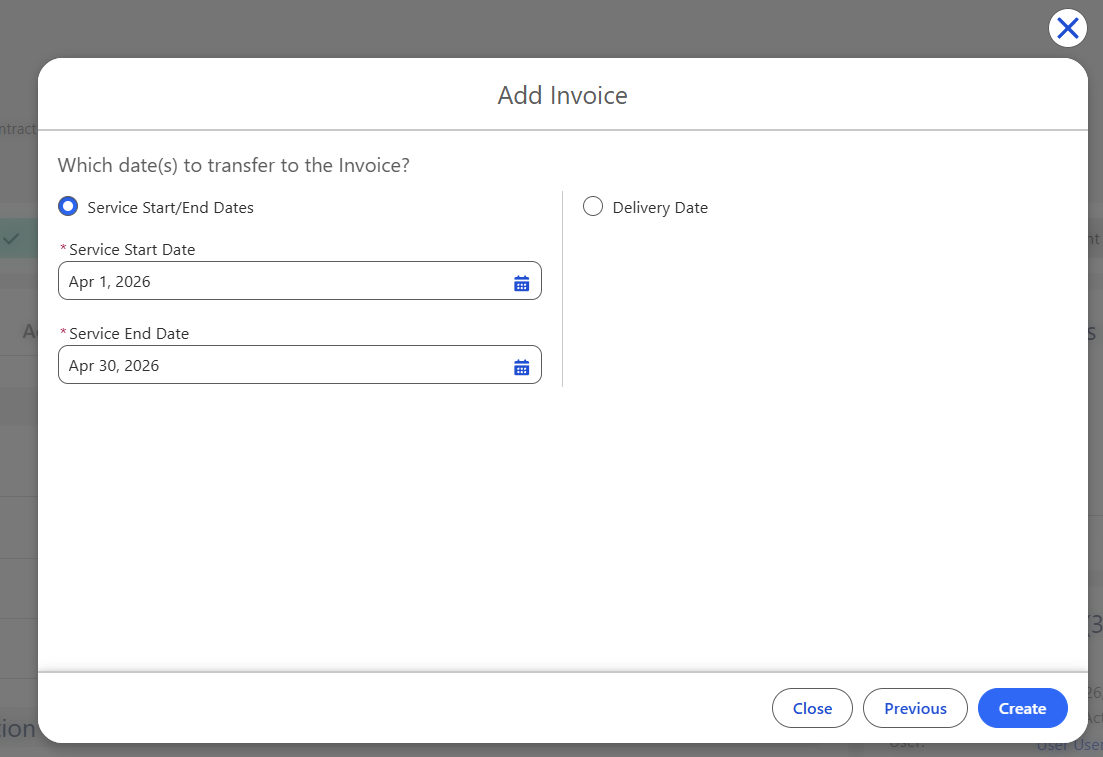
- Select Service Start/End Dates or Delivery Date for the Invoice:
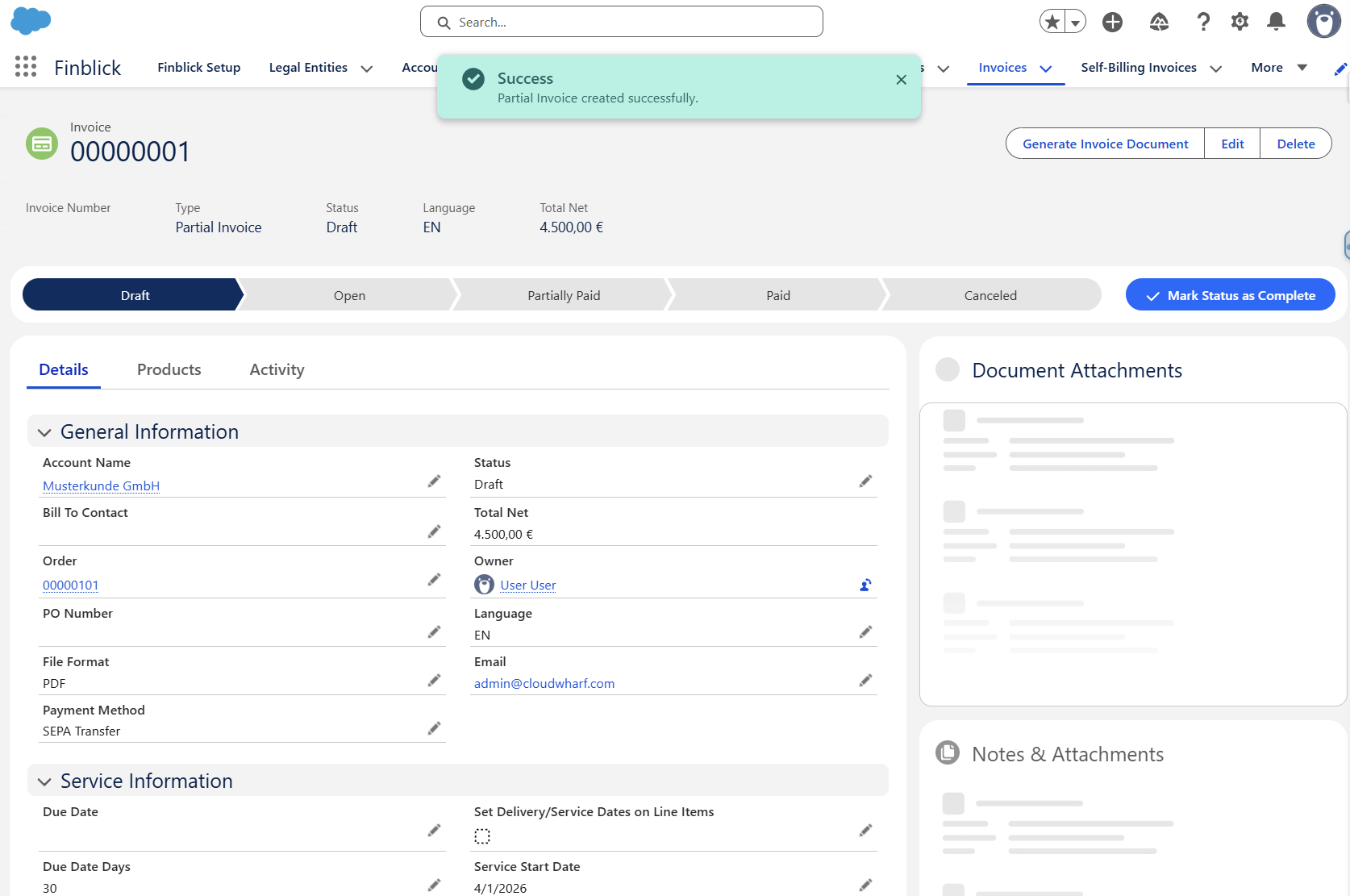
- Press Create and check the created Invoice record:
- Once the Invoice document is generated, the next Invoices can be created:
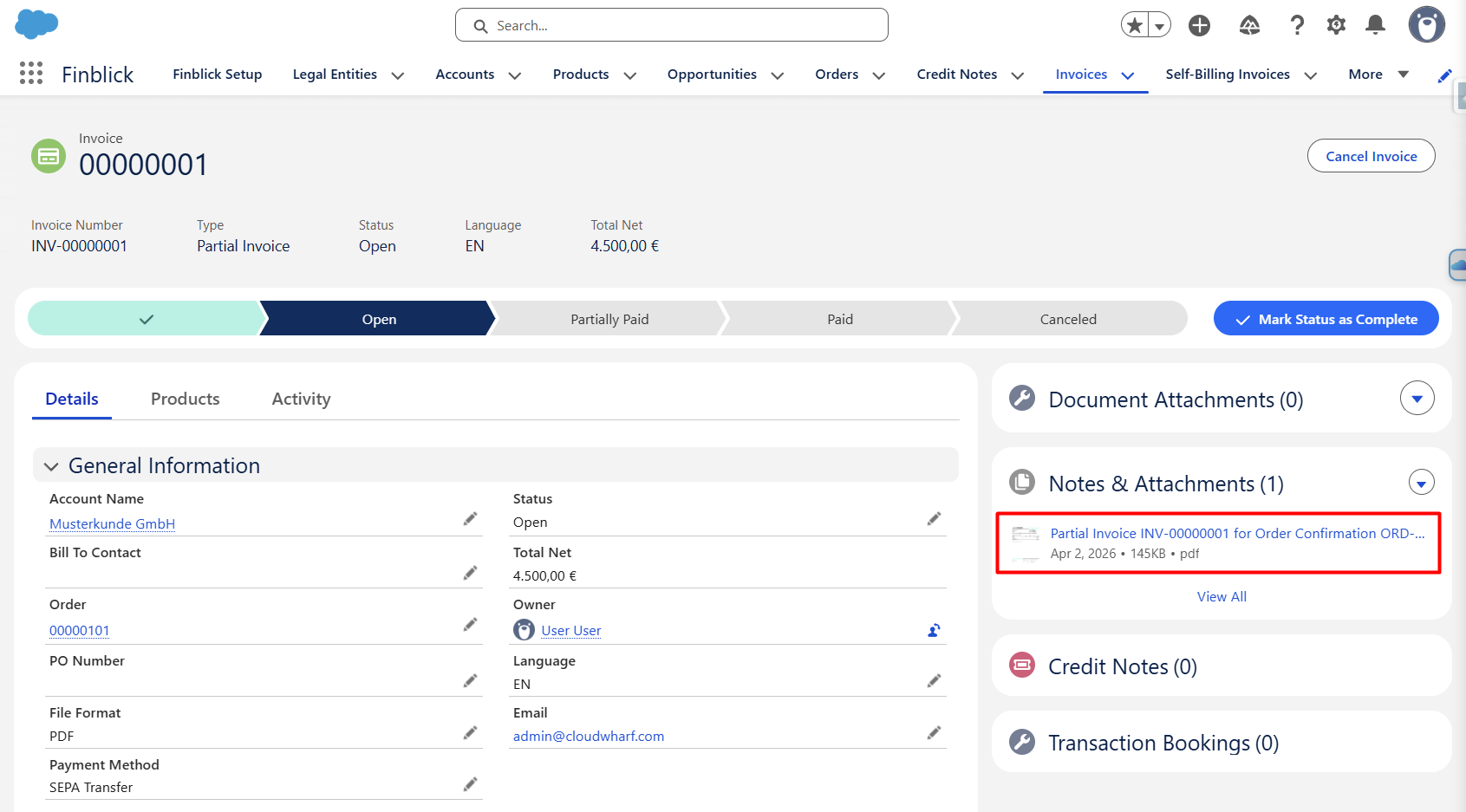
- Navigate back to the Order record and press the Create Invoice button again:
- The remaining positions will be shown in the modal window.
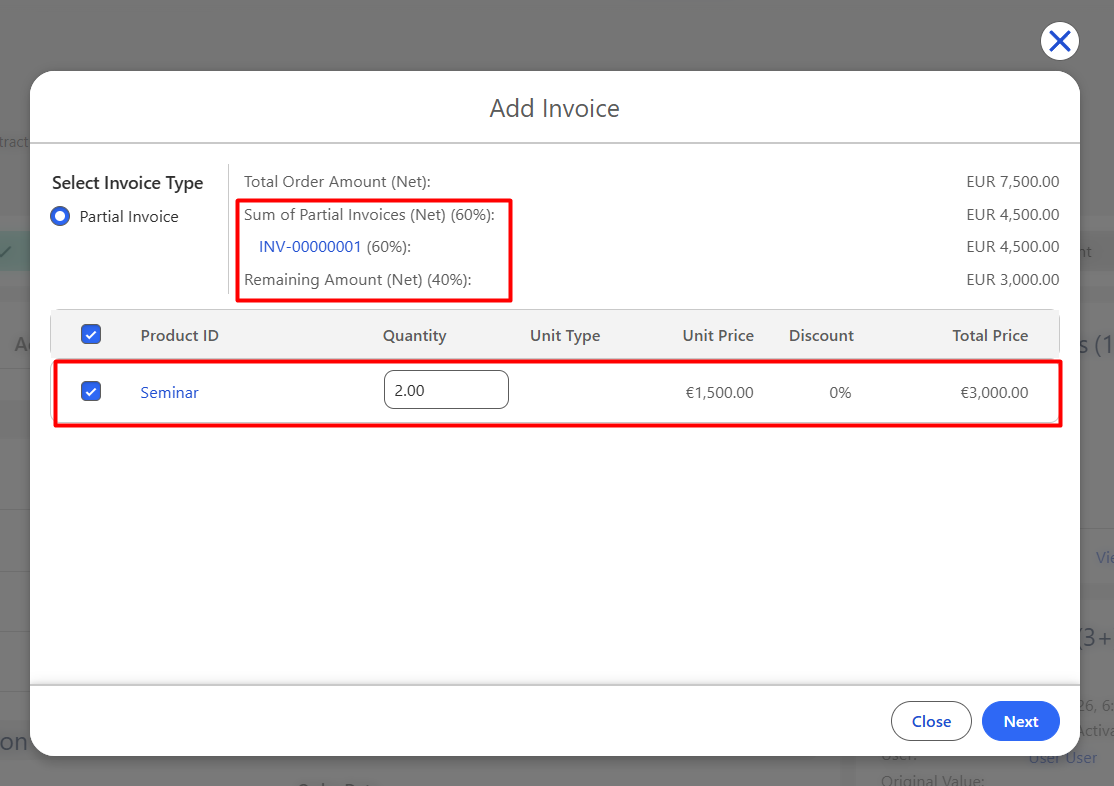
If the Invoice document is in Draft status, the creation of the next Invoices will be blocked until the previous Invoice is generated.
Partial Invoicing provides flexibility for issuing Invoices at different stages of the order lifecycle. Using the Create Invoice button, users can generate:
- Down Payment Invoices for upfront charges
- Partial Invoices for staged billing
- Final Invoices for completing the billing process
This ensures proper document flow, sequencing, and accurate financial tracking across all stages of the Order.


