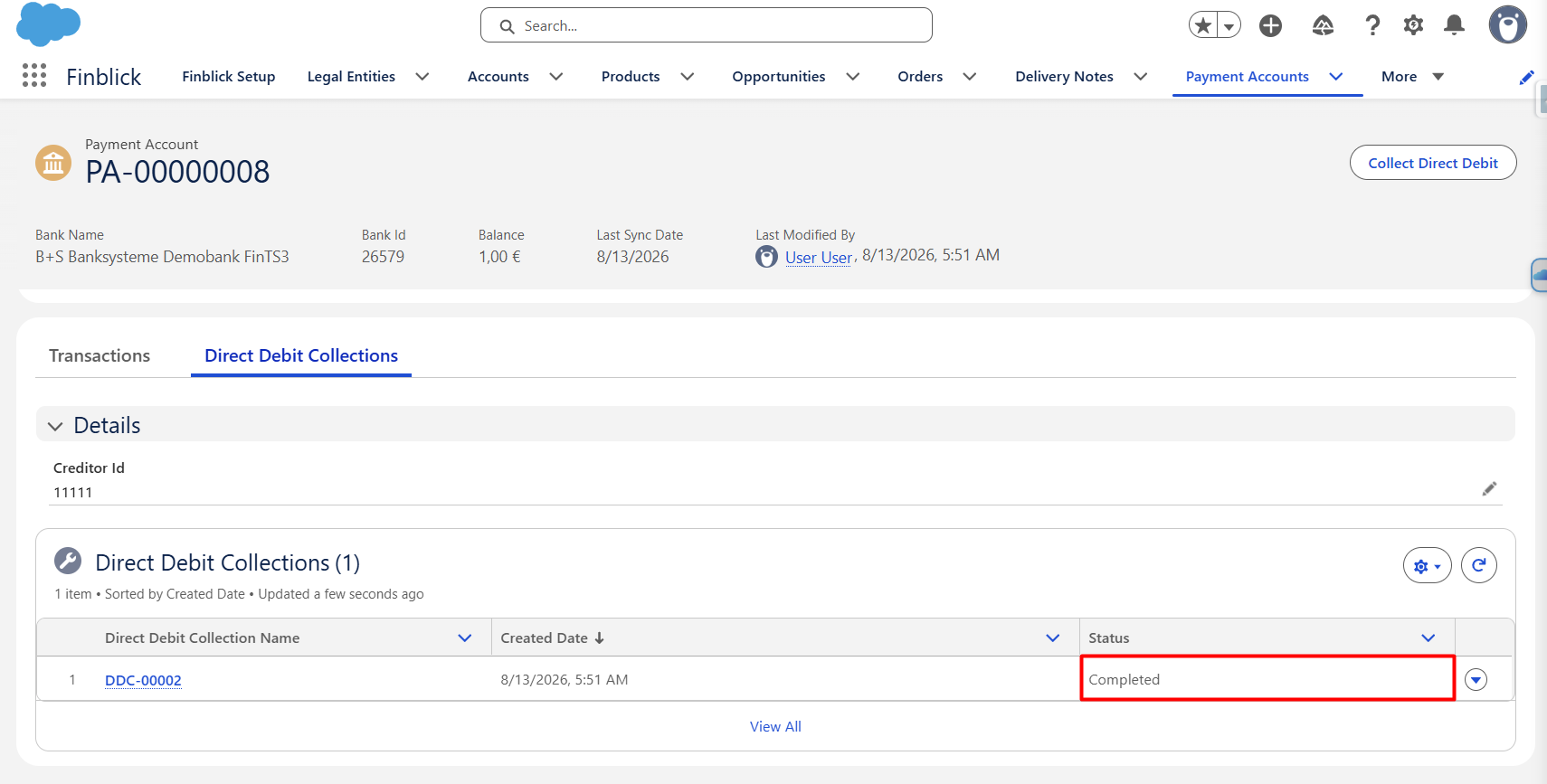
SEPA Direct Debit allows invoice amounts to be collected directly from the customer’s bank account. The collection process is managed through the Payment Accounts and can be used for invoices where Direct Debit has been selected as the payment method.
Important: SEPA Direct Debit is an add-on and must be ordered separately. It is not included in the standard Finblick feature set. The functionality described in this article is only available after the SEPA Direct Debit add-on has been activated.
Before starting a collection, the following prerequisites must be fulfilled:
- The Creditor ID must be specified for the relevant Payment Account.
- The customer’s Account record must contain a valid IBAN and BIC.
- The Invoice must be generated with Payment Method set to Direct Debit.
Step-by-Step Guide to Configuring SEPA Direct Debit #
- Open the Payment Accounts tab:
- Navigate to the Payment Accounts tab and open the Payment Account that will be used for the direct debit collection.
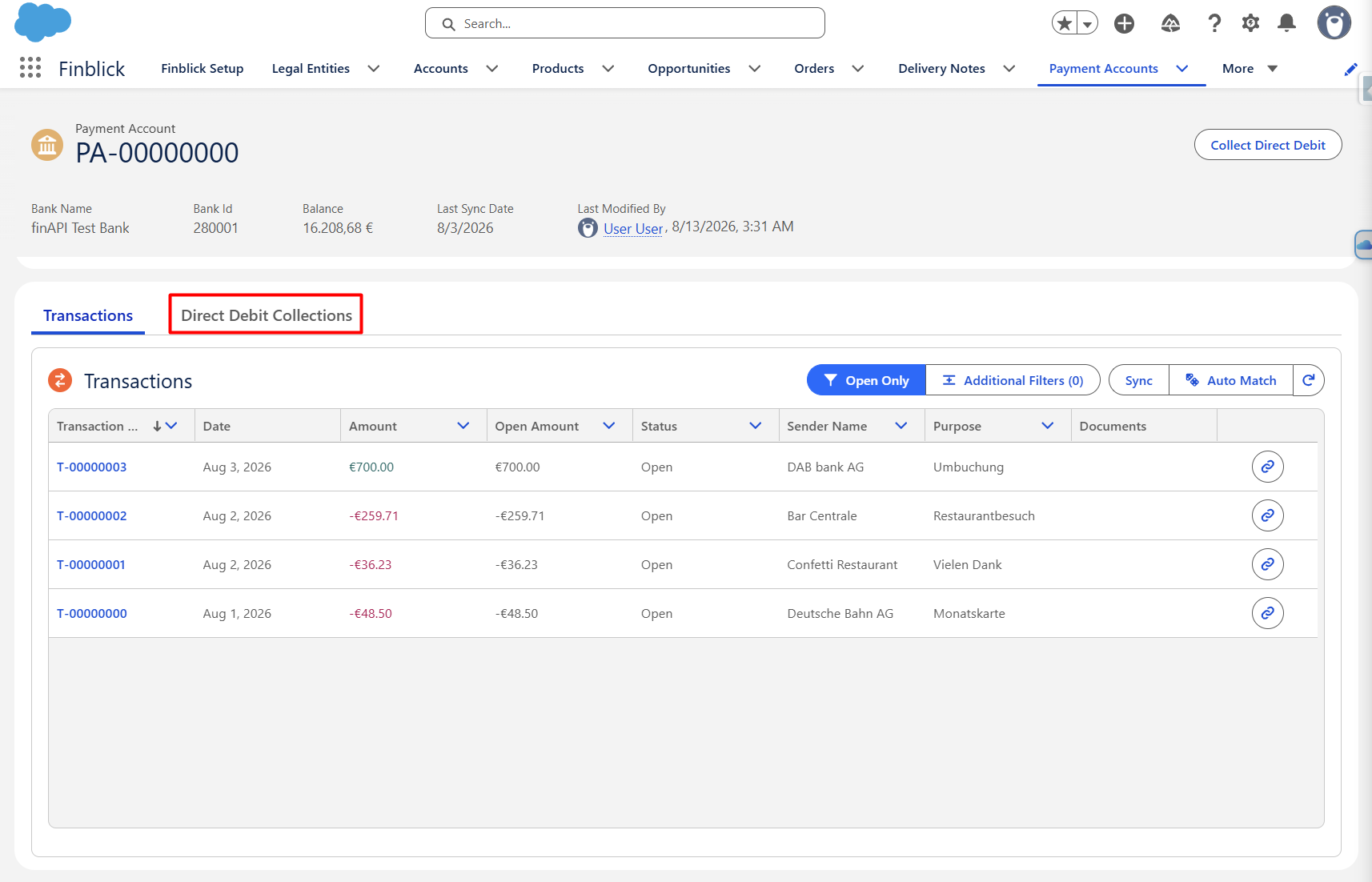
- Populate the Creditor ID:
- Navigate to the Direct Debit Collections tab on the Payment Account.
- Enter the appropriate Creditor ID:
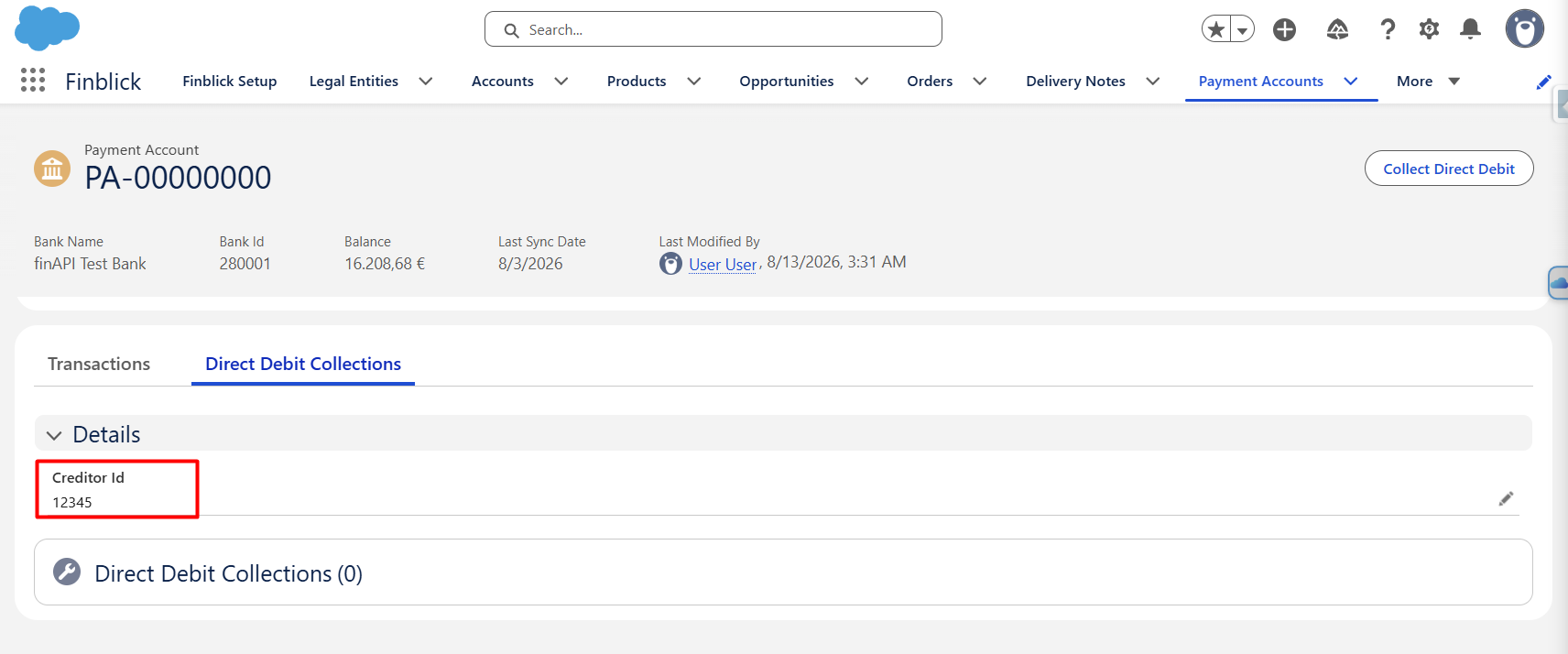
The Creditor ID is required to identify the creditor in SEPA Direct Debit transactions.
- Open the Account record of the customer whose invoice amount should be collected.
- Populate the following fields:
- IBAN – enter the customer’s bank account IBAN.
- BIC – enter the customer’s bank identifier code.
- Populate the following fields:
Both fields must be populated before the invoice can be included in a direct debit collection.
- Create and Generate the Invoice:
- Create an invoice for the customer.
- Set the Payment Method field to Direct Debit.
- Generate the invoice document:
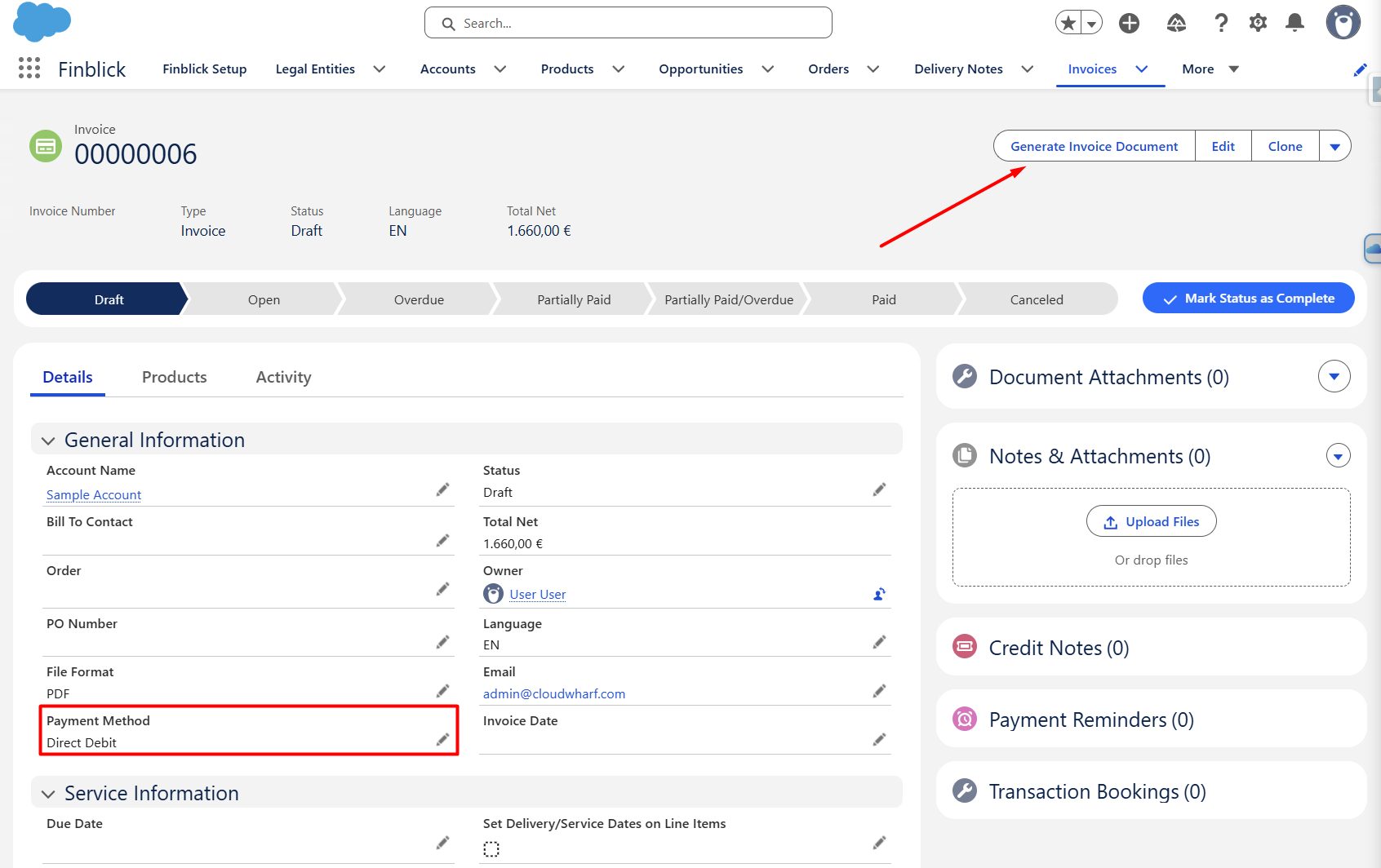
Only generated invoices with Payment Method = Direct Debit will be available for selection during the direct debit collection process.
Step-by-Step Guide to Starting the SEPA Direct Debit Process #
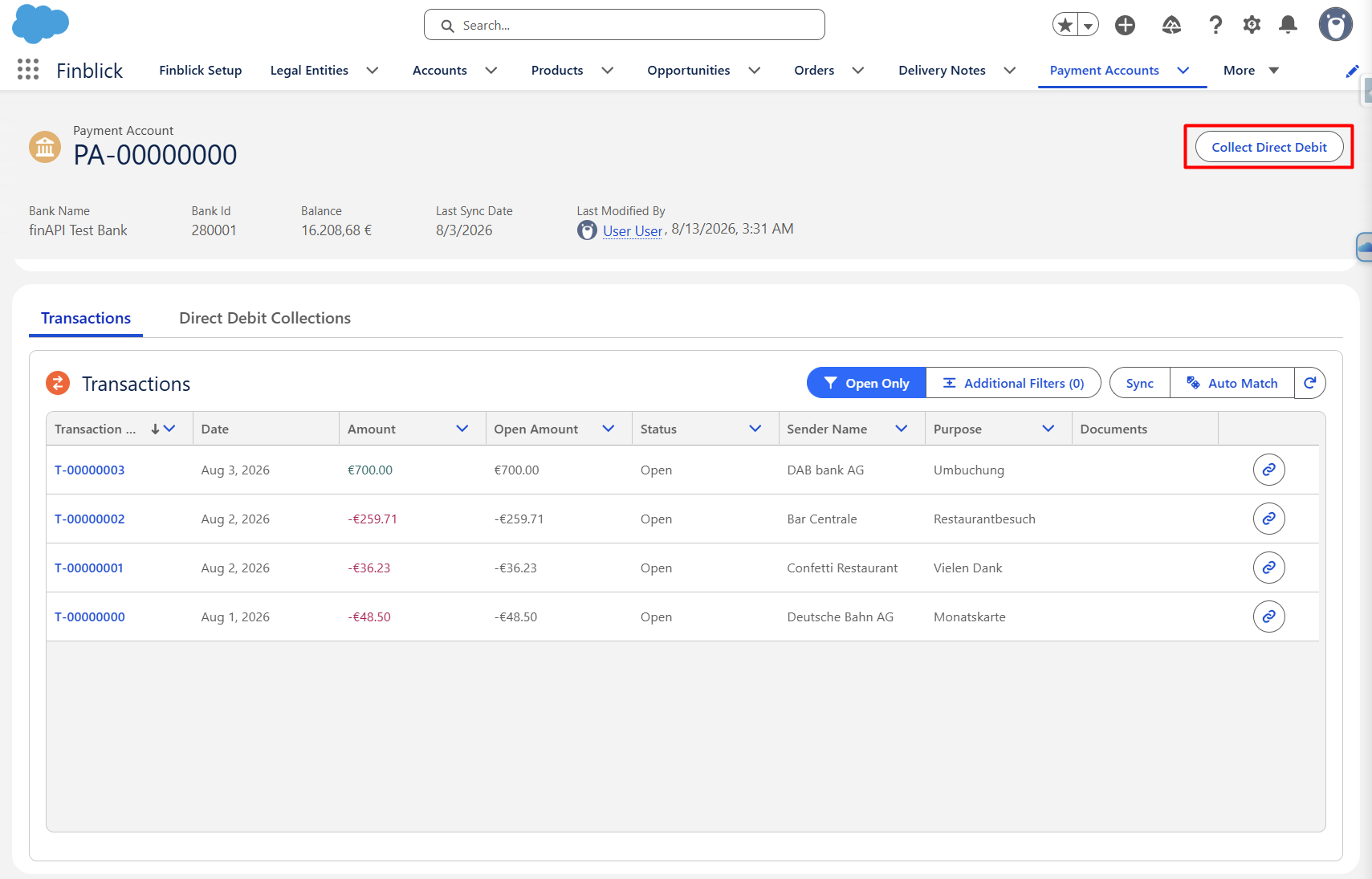
- Open the relevant Payment Account record:
- Click Collect Direct Debit:
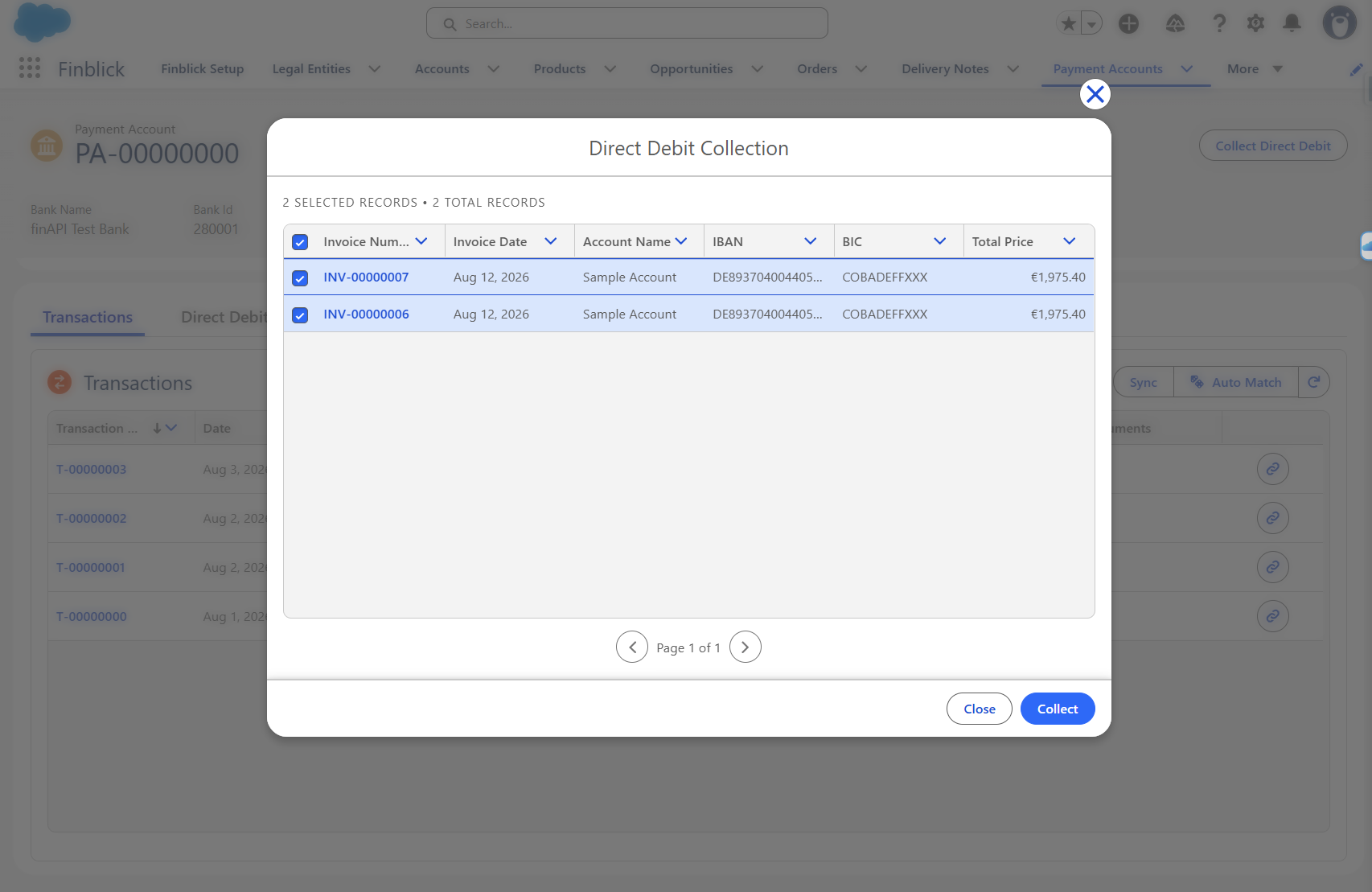
- A list of eligible invoices will be displayed:
- Select the invoices that should be included in the collection.
- Only invoices fulfilling the required prerequisites will be available for selection:
- Confirm the Collection:
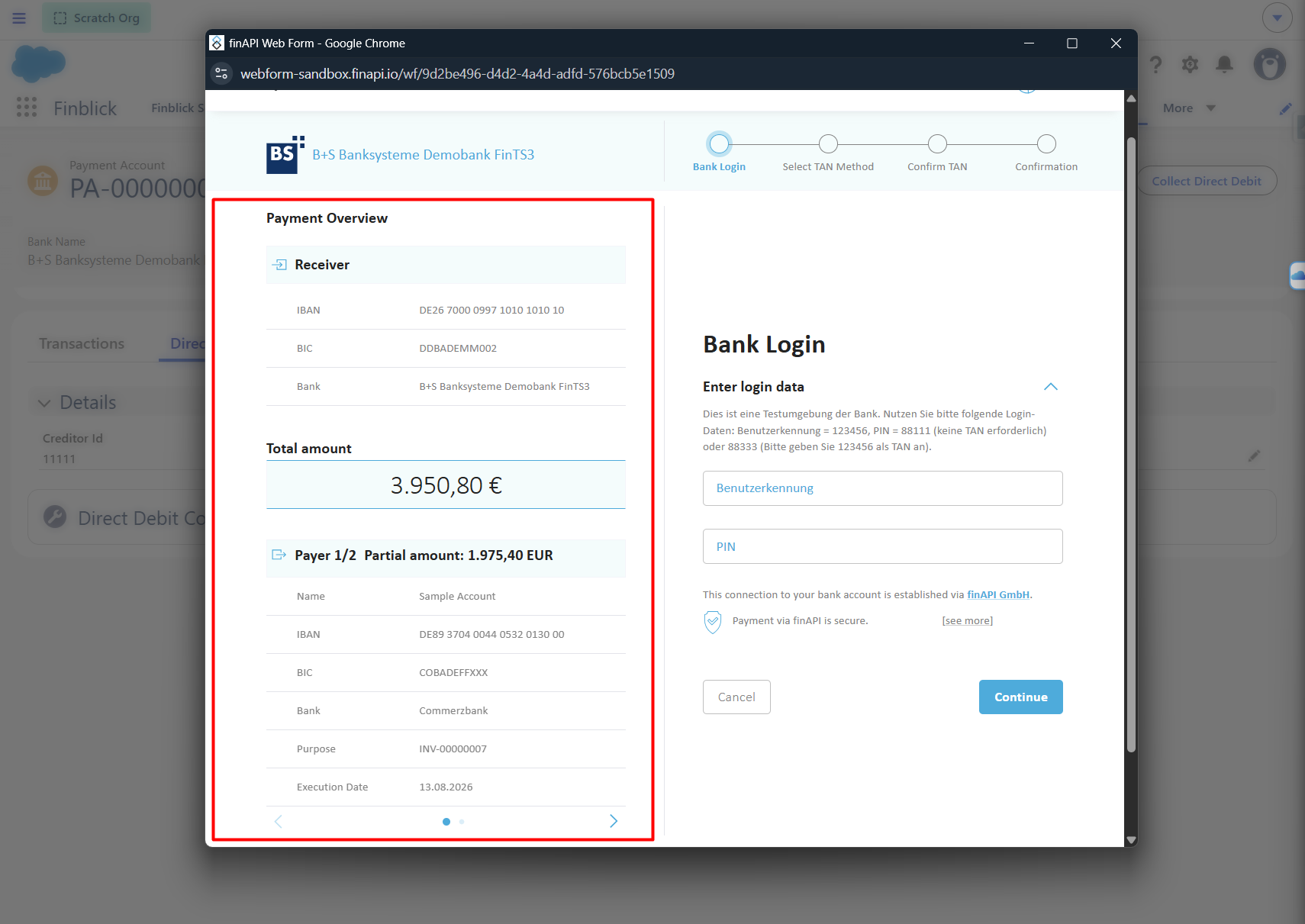
- After selecting the desired invoices, the FIN API pop-up window will be opened.
- Review the selected invoices:
- After selecting the desired invoices, the FIN API pop-up window will be opened.
- Enter the Bank Login details:
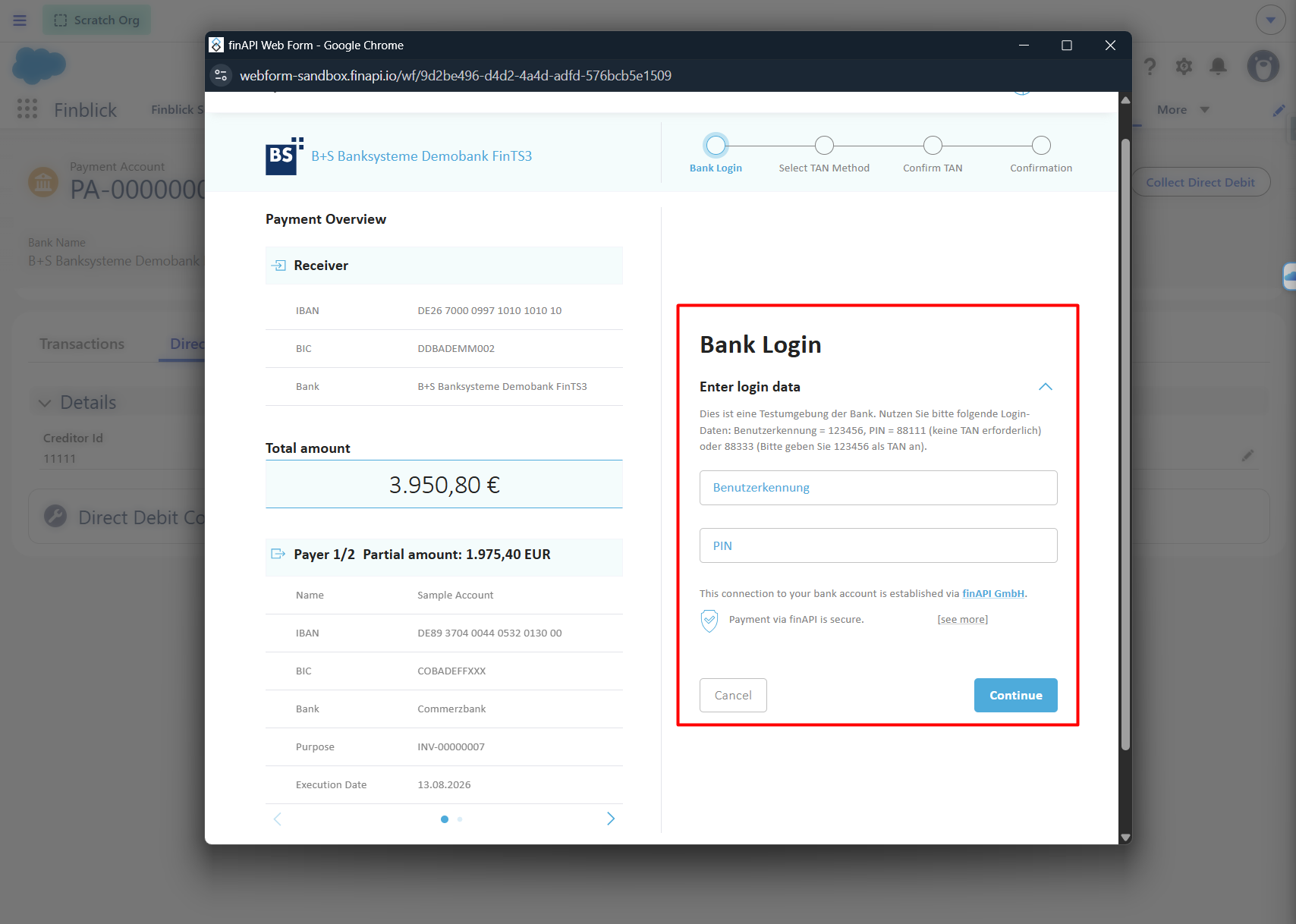
- Select the TAN Method to confirm and proceed with establishing the bank connection:
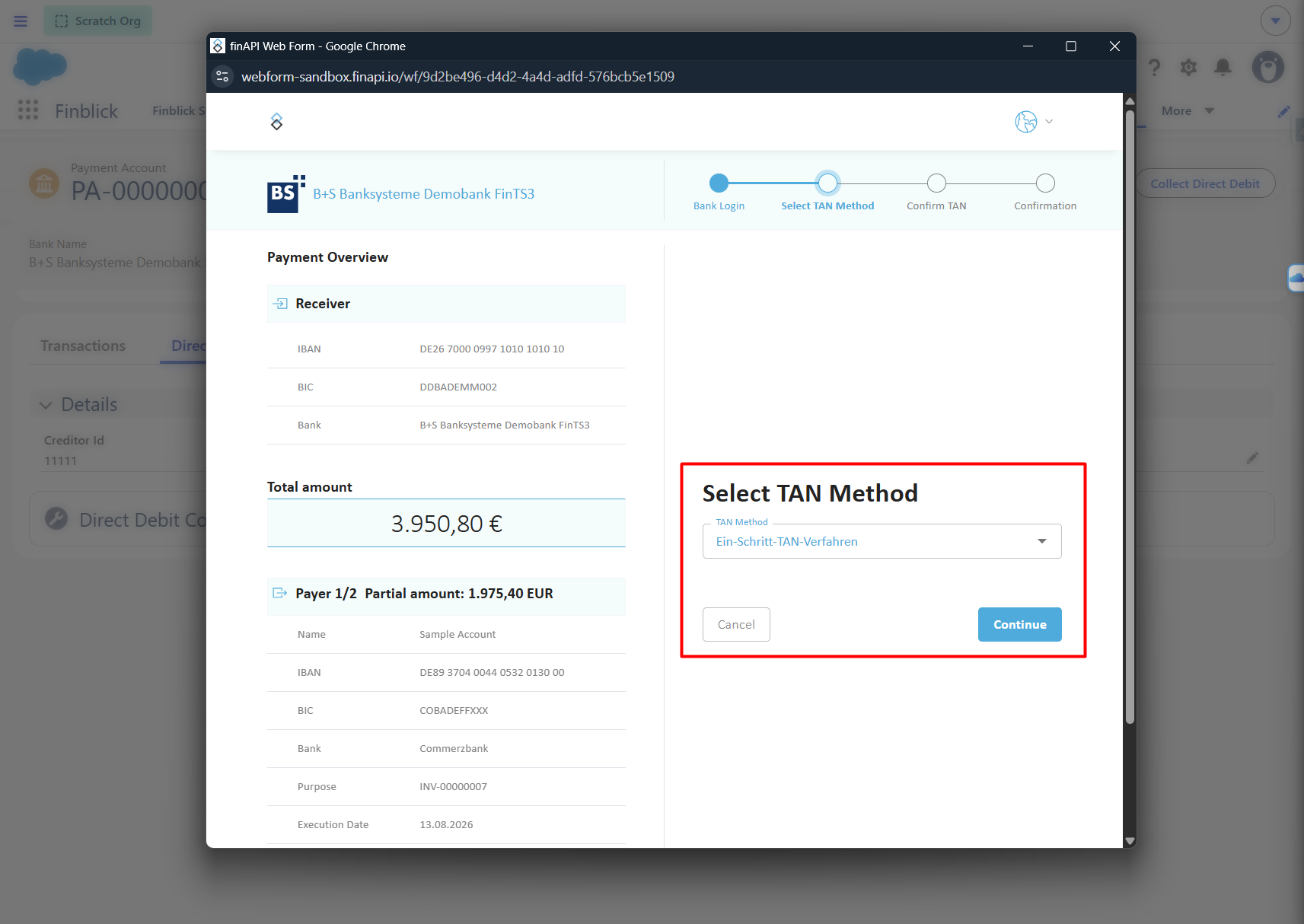
- Start the Direct Debit Collection process. During the process, the Direct Debit Collection record will be created. The selected invoice amounts will then be submitted for collection directly from the customers bank accounts.
- After this, the Direct Debit Collection record will be updated and it’s status will be set to Completed.