
Payment Reminders allow overdue or partially paid invoices to be managed through configurable reminder levels. Payment Reminder Levels define when a Reminder should be created and whether a reminder fee should be charged. Payment Reminders can then be created for eligible invoices using the Payment Reminder Manager.
The feature also introduces Charges, which can be used for reminder fees and are included in the total amount of the Payment Reminder.
Required Configuration Before Update to Version 280 or higher #
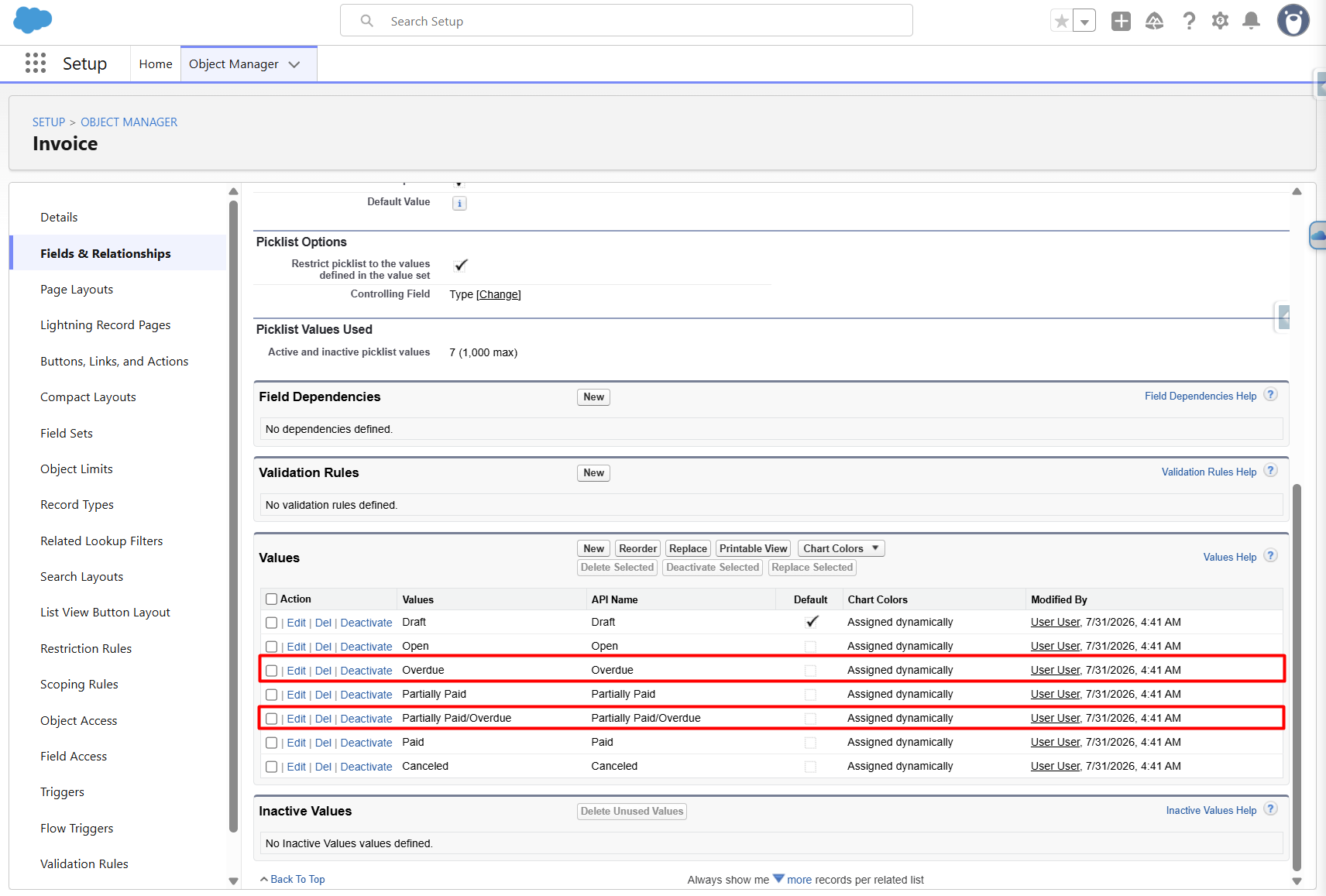
The following values must be added to the Invoice Status picklist:
- Overdue
- Partially Paid/Overdue
The same values must be added to the Invoice Type field dependencies for all Invoice Types except Cancelation Invoice:
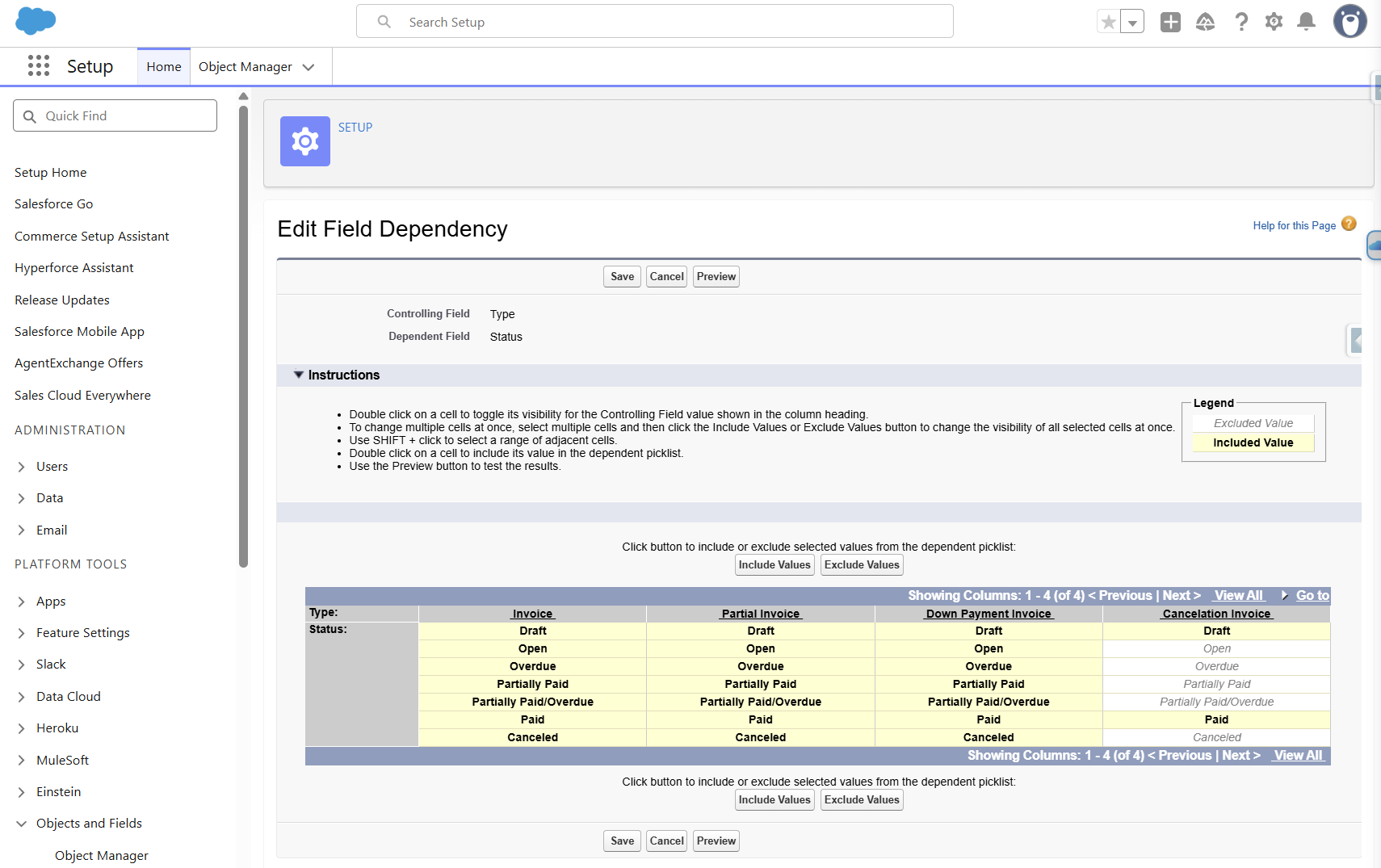
Important: This configuration is required before updating the package to version 0.280.1 when upgrading from version 0.279.x or earlier.
After the update, Finblick automatically evaluates open and partially paid invoices and charges with past due dates once per day and changes their status to Overdue or Partially Paid/Overdue. More details on this topic will be covered later in this article.
Payment Reminder Levels #
Payment Reminder Levels define when and how a Payment Reminder should be created.
Each Payment Reminder Level is assigned to a Legal Entity and contains the following key information:
- Level – defines the reminder level.
- Days after Due – defines how many days after the invoice due date the level becomes applicable.
- Reminder Fee – determines whether a reminder fee should be created.
- Days to pay Fee – defines the number of days available to pay the Payment Reminder.
- Fee Amount – defines the amount of the reminder fee.
The Days after Due value cannot be negative and can be set to 0.
If the Legal Entity page has been manually adjusted previously, the Payment Reminder Levels related list must be added manually; otherwise, the page will be updated automatically after the app update.
Step-by-Step Guide to Creating a Payment Reminder Level #
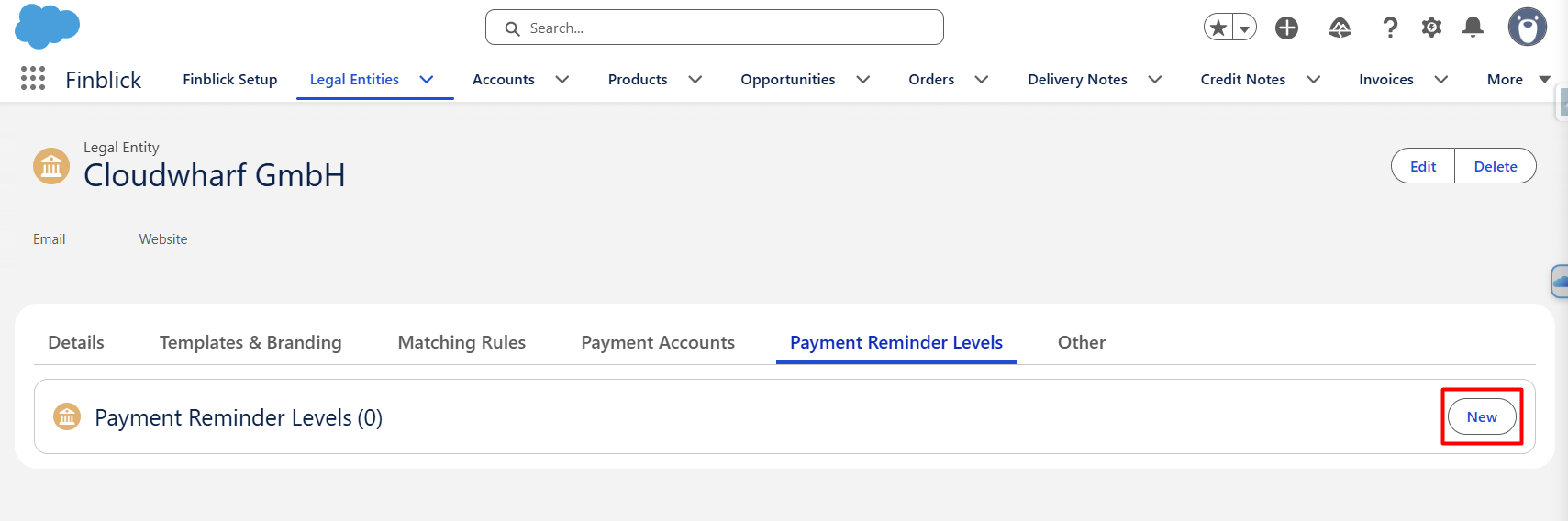
- In the Finblick application, navigate to the Legal Entity record.
- Open the Payment Reminder Levels and the Payment Reminder Levels related list.
- Click New:
- Populate the Payment Reminder Level fields:
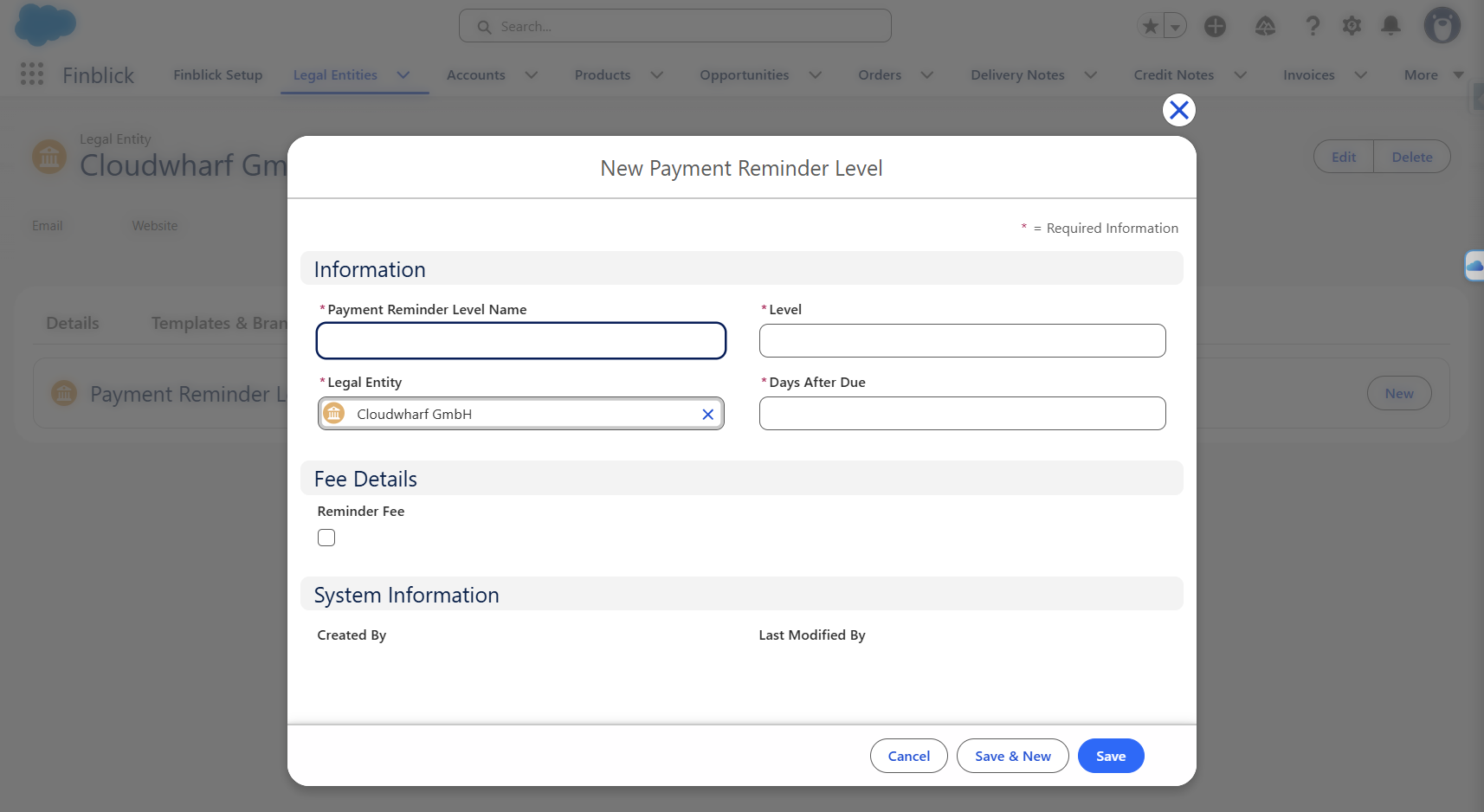
- If Reminder Fee is enabled, Days to pay Fee and Fee Amount must also be configured. The fee amount must be positive:
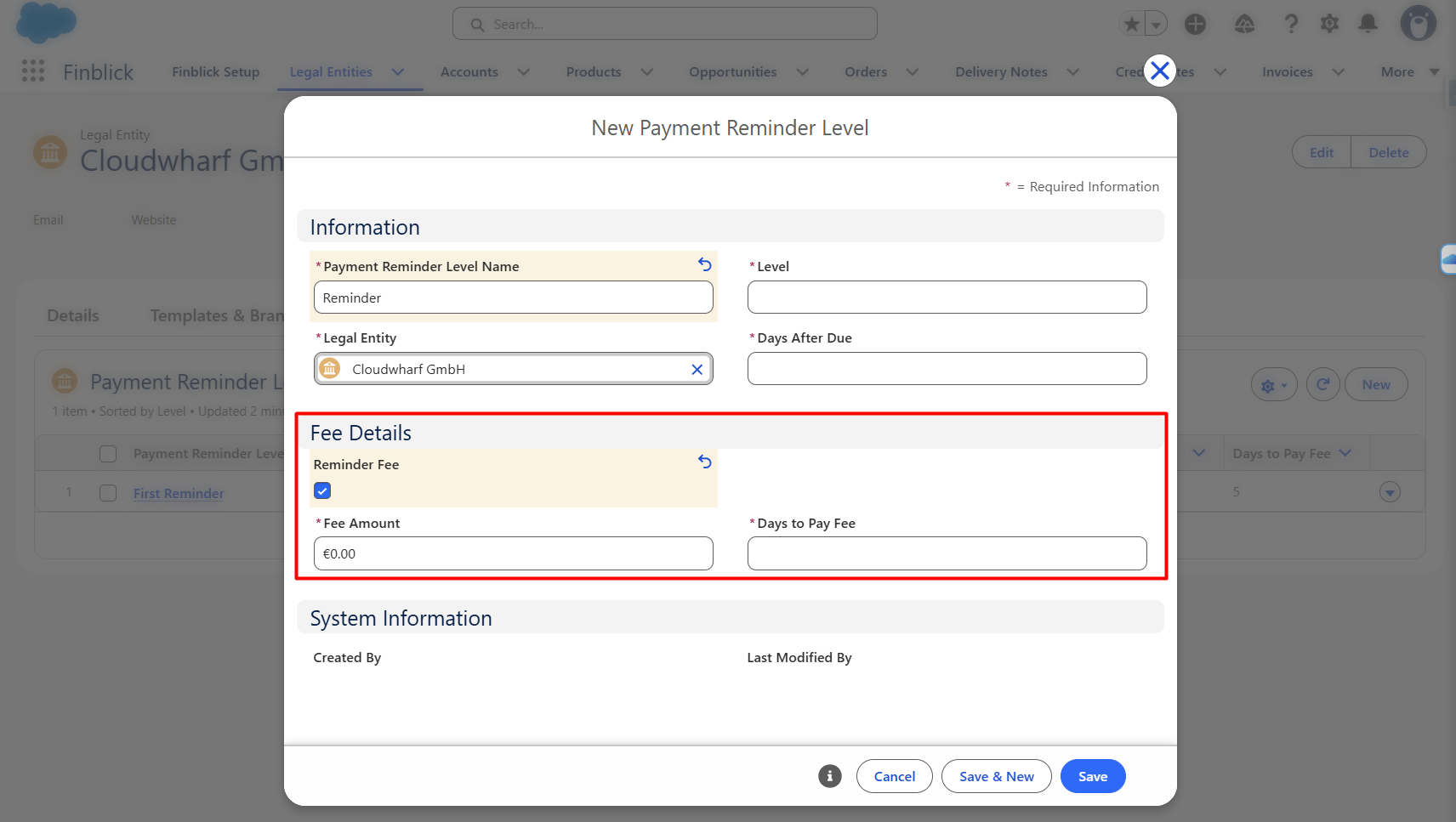
- Click Save.
The Payment Reminder Level will now be available for determining eligible Payment Reminders.
Payment Reminder Levels with Multiple Currencies #
When Multiple Currencies are enabled in the Salesforce org, Payment Reminder Level matching also takes the Currency ISO Code into account.
In this case, the Currency ISO Code field should be added to the Payment Reminder Level page layout and to the Payment Reminder Levels related list on the Legal Entity record.
Payment Reminder Level Descriptions #
Payment Reminder Level Descriptions define the Header and Footer Text that will be used on Payment Reminder documents.
Each description is associated with a Payment Reminder Level and a Language.
The Header and Footer Text Templates can be selected separately. The selected language is used to determine the appropriate description when a Payment Reminder is created.
Step-by-Step Guide to Creating a Payment Reminder Level Description #
- Open the appropriate Payment Reminder Level record.
- Navigate to the Payment Reminder Level Descriptions related list:
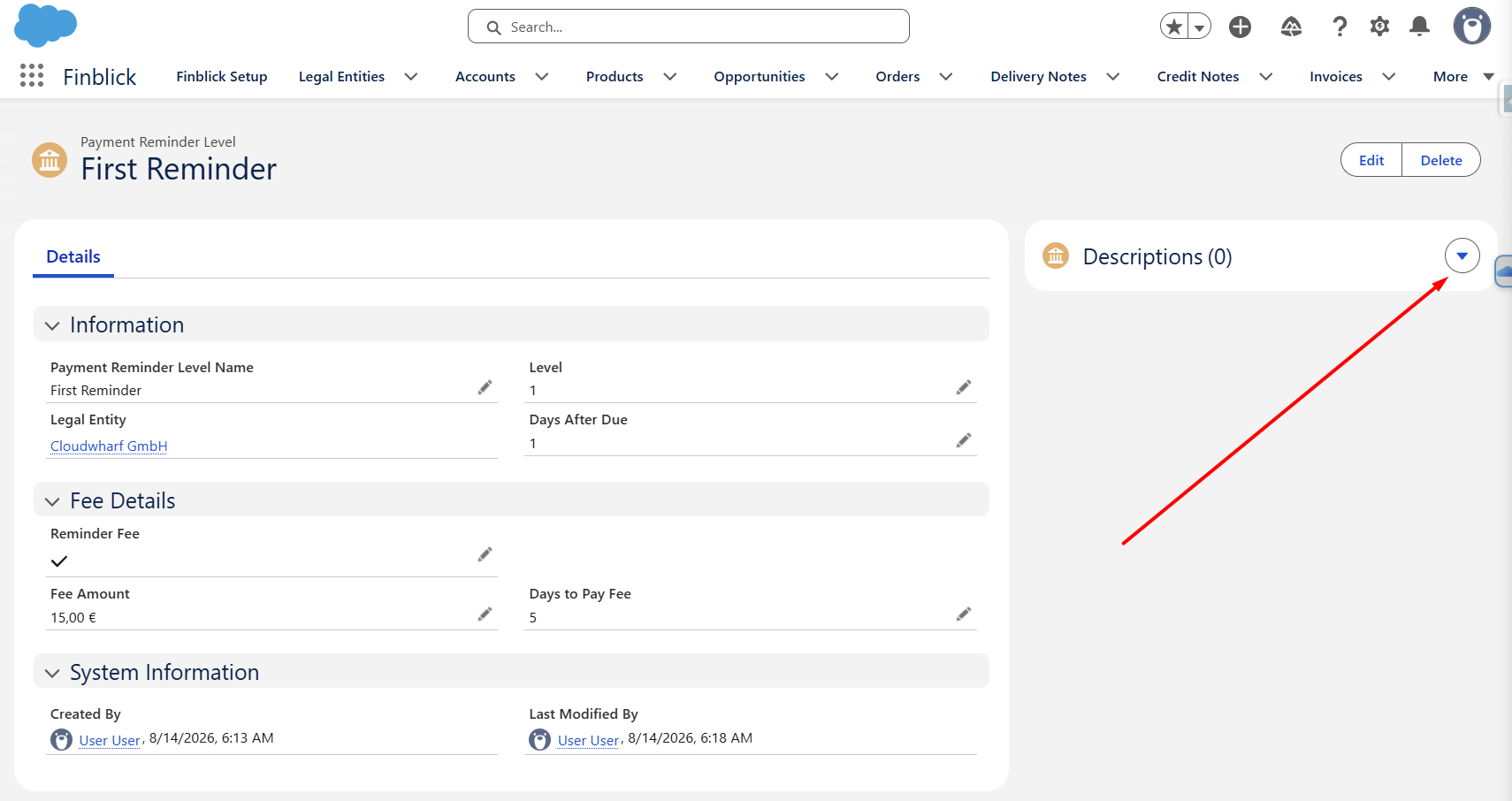
- Click New and populate the fields:
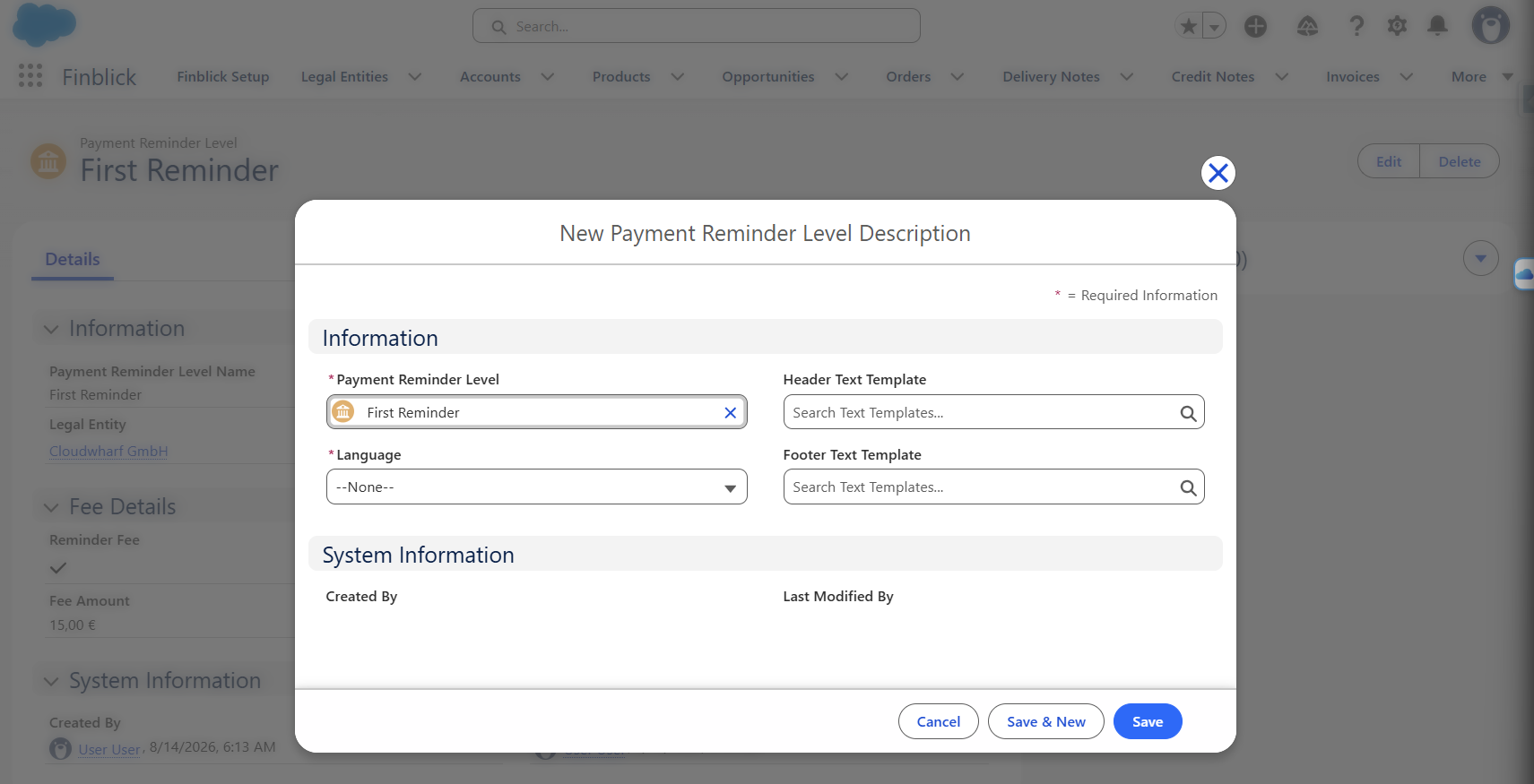
- Click Save.
When a Payment Reminder is created, the Header Text and Footer Text will be populated from the matching description.
Payment Reminder Manager #
Payment Reminders are created using the Payment Reminder Manager component, available in the tabs of the Finblick application.
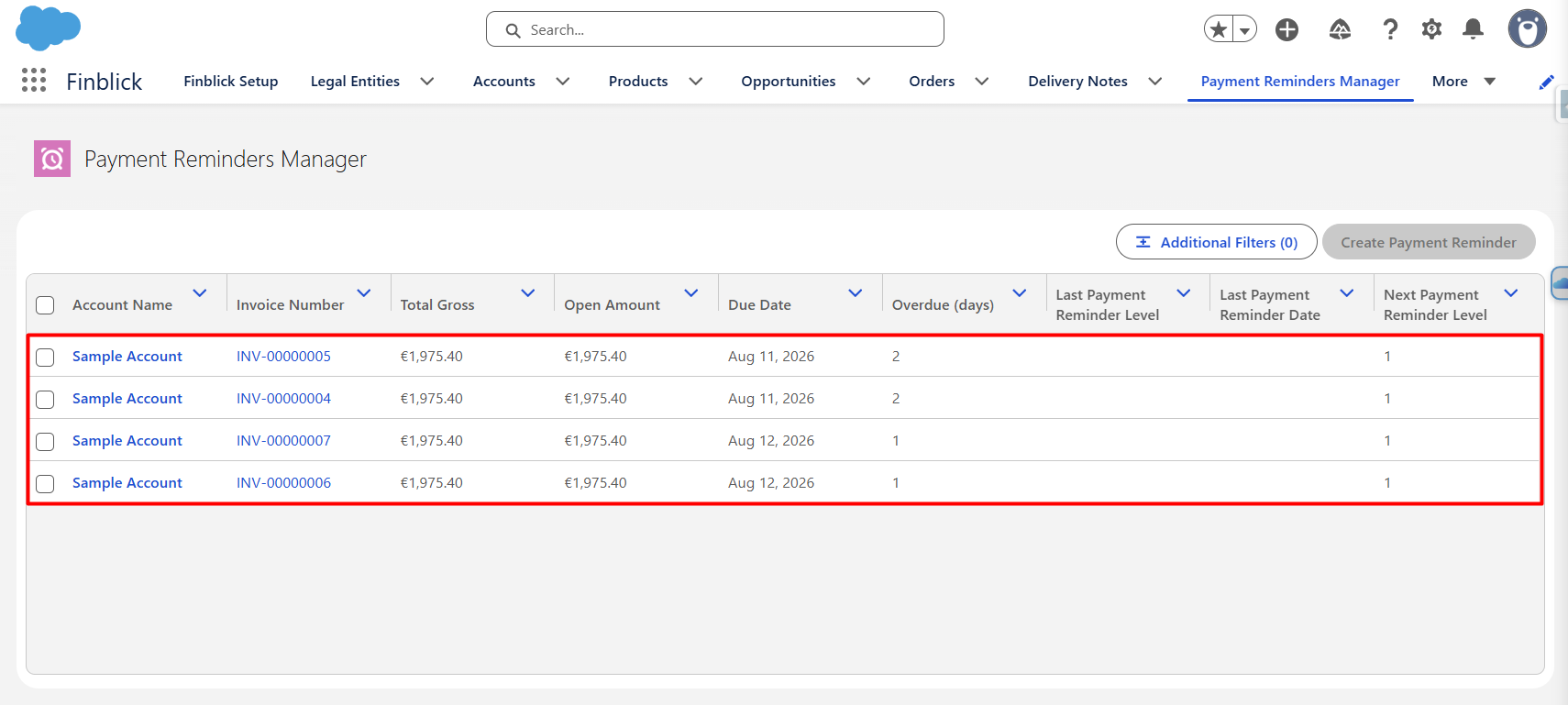
The component displays invoices that are currently eligible for Payment Reminder creation.
An invoice is eligible when:
- Its Status is Overdue or Partially Paid/Overdue.
- There is no Payment Reminder with Draft status that already contains the invoice.
- An applicable Payment Reminder Level exists.
- The Payment Reminder Level is higher than the invoice’s Last Payment Reminder Level.
- The Payment Reminder Level’s Days after Due value has been reached.
- If Multiple Currencies are enabled, the Currency ISO Code matches.
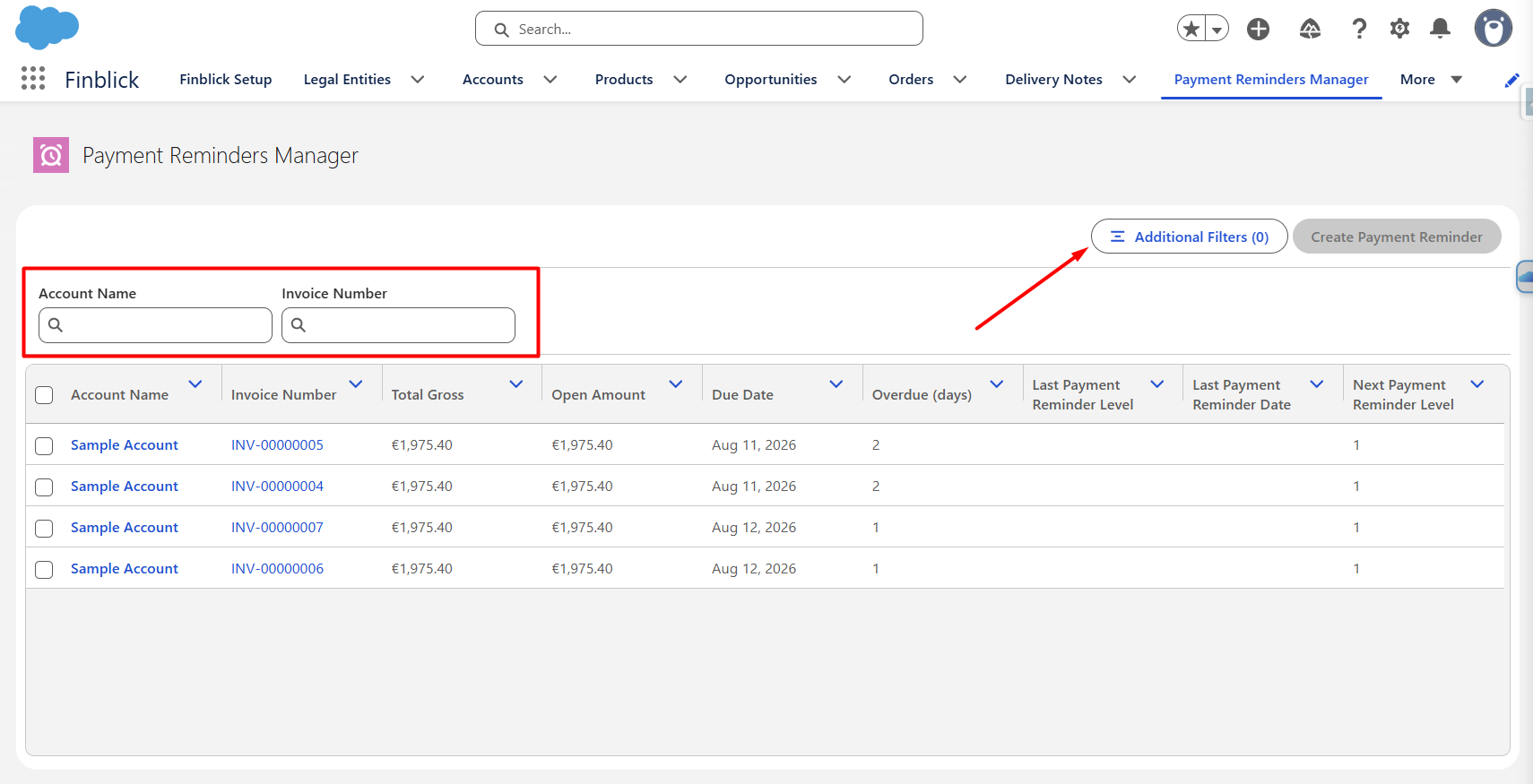
Additional filters can be used to search by Account Name and Invoice Number.
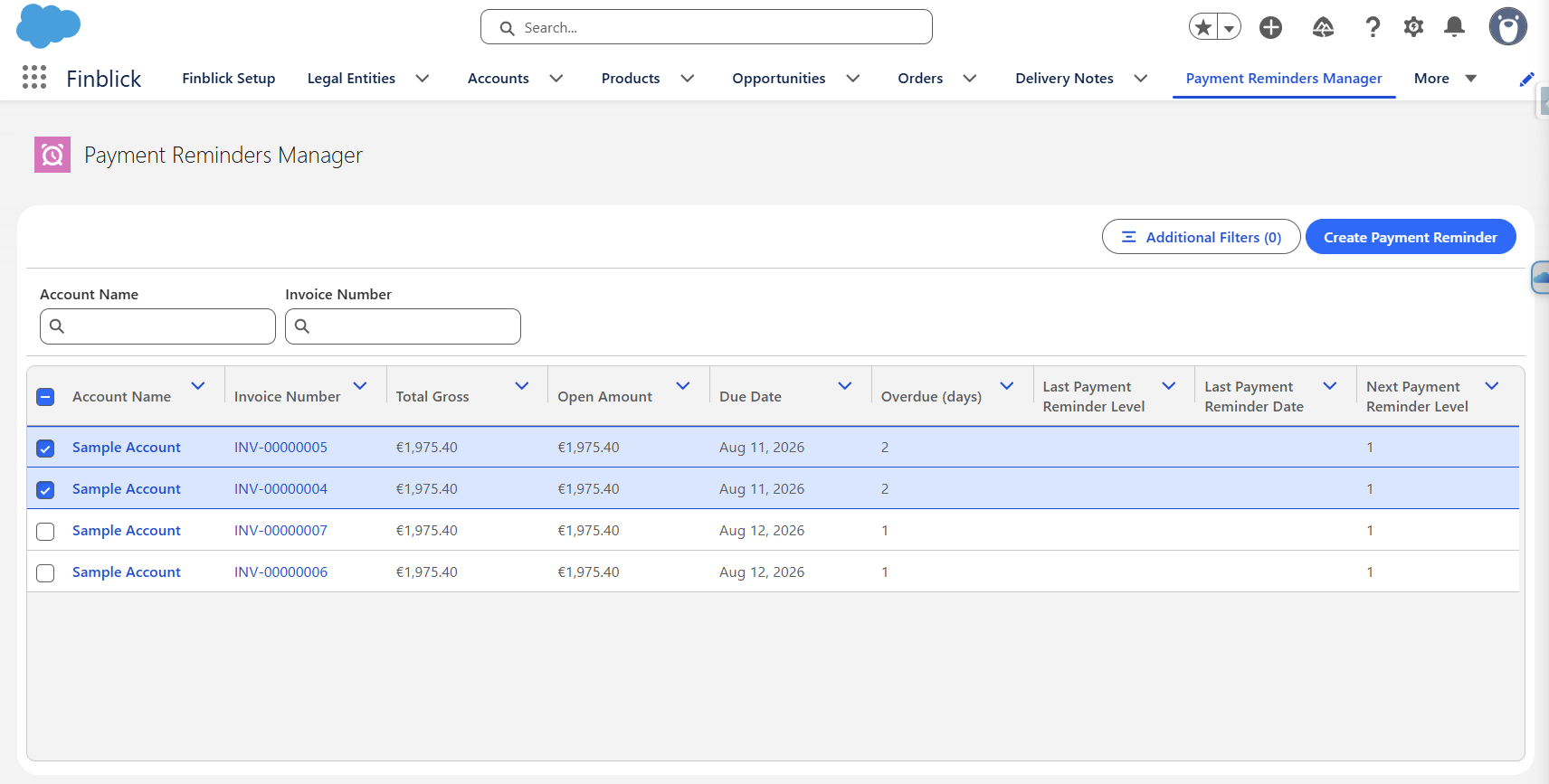
Currently, Payment Reminders can only be created for invoices belonging to one Account at a time. If invoices belonging to multiple Accounts are selected, an error message will be displayed.
Step-by-Step Guide to Creating a Payment Reminder #
- Open the Payment Reminder Manager tab:
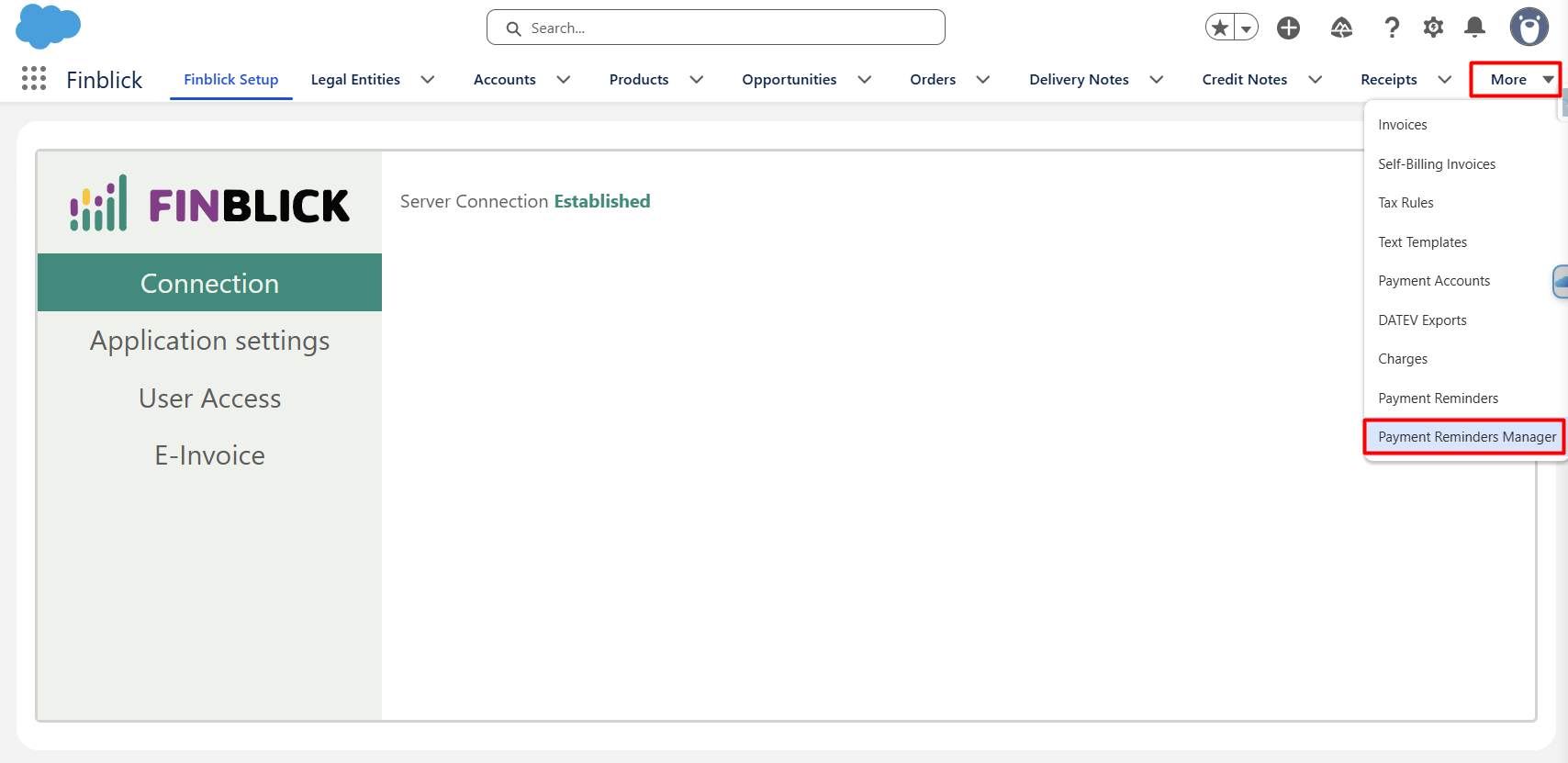
- Review the list of invoices eligible for Payment Reminder creation:
- Use the available filters if necessary to find the required invoices:
- Select the invoices that should be included in the Payment Reminder.
- Ensure that all selected invoices belong to the same Account.
- Start the Payment Reminder creation process:
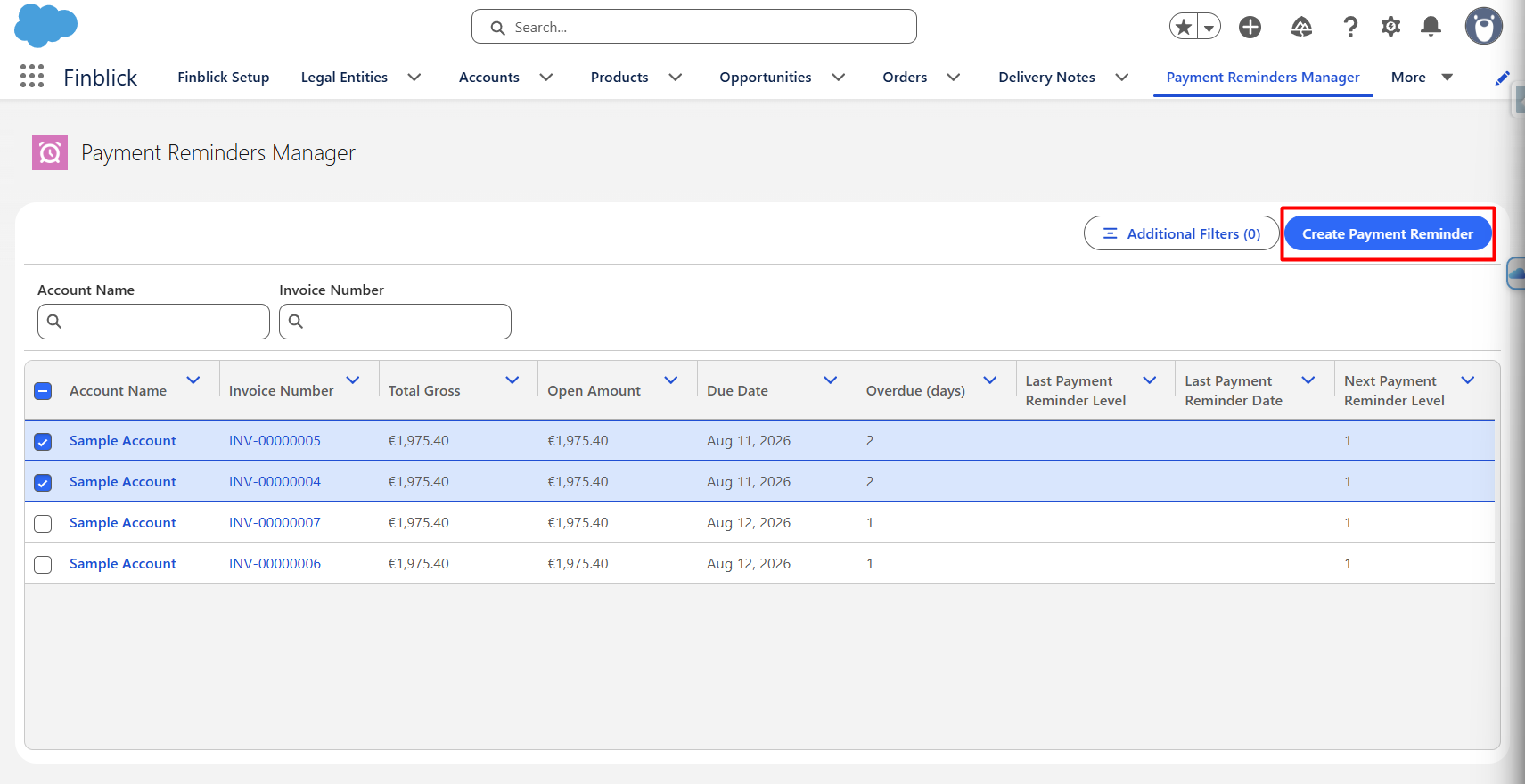
The following records will be created:
- One Payment Reminder linked to the Account.
- One Payment Reminder Line for each selected Invoice.
- One Reminder fee Charge if the applicable Payment Reminder Level has the Reminder Fee option enabled.
The Payment Reminder Line is assigned the level directly following the invoice’s Last Payment Reminder Level, even if the invoice is eligible for a higher Reminder Level.
Payment Reminder Number Sequences and Templates #
Payment Reminders use Number Sequences and Document Templates in the same way as other Finblick document types.
The following fields are available on the Legal Entity object:
- Default Payment Reminder Template – defines the default Payment Reminder Template.
- Payment Reminder Number Sequence – defines the Number Sequence used for Payment Reminders.
These settings allow Payment Reminders to be configured independently for each Legal Entity.
Payment Reminder Document Generation #
Payment Reminder document generation works similarly to the document generation process used for other Finblick documents.
The “Generate Payment Reminder“ button should be used to open a preview and start the PDF generation:
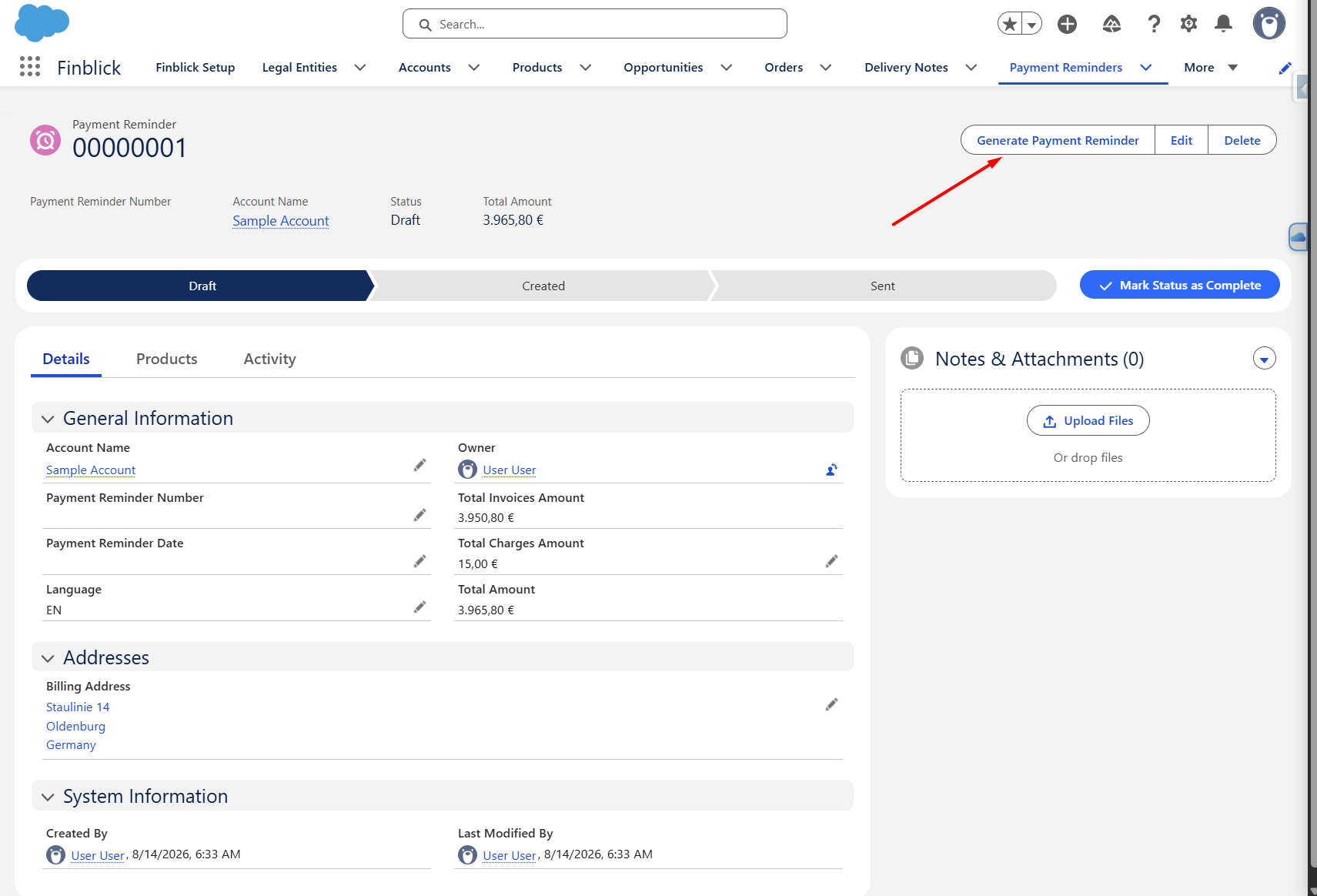
The Payment Reminder contains the relevant Account, Legal Entity, Number Sequence, Template, Language, Header Text, Footer Text, Payment Reminder Date, Payment Reminder Number, and invoice information.
The Payment Reminder has the following Status values:
- Draft
- Created
- Sent
The Payment Reminder also provides the following amounts:
- Total Invoices Amount – total outstanding amount of the included invoices.
- Total Charges Amount – total amount of associated Charges.
- Total Amount – total of the invoice and Charge amounts.
Charges and Reminder Fees #
Charges are used to record additional amounts associated with a Payment Reminder, such as reminder fees.
When a Payment Reminder Level has Reminder Fee enabled, a Charge of type Reminder fee is created automatically when the Payment Reminder is created:
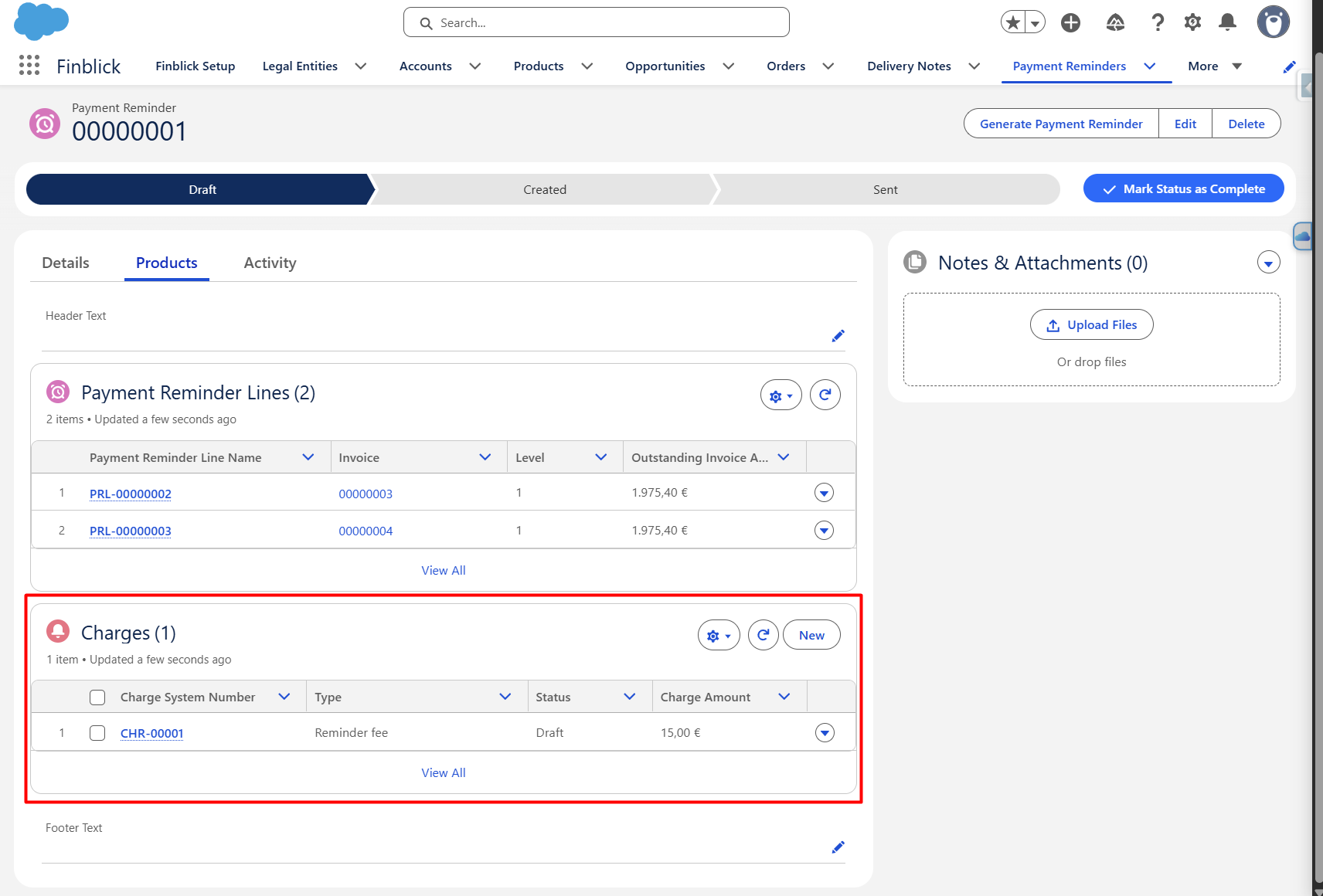
The Charge contains information such as:
- Account
- Legal Entity
- Payment Reminder
- Charge Amount
- Due Date Days
- Due Date
- Status
- Paid Amount
- Open Amount
- Booking Account
- BU Key
- Cost Center 1
- Cost Center 2
The Charge has the following Status values:
- Draft
- Open
- Overdue
- Partially Paid
- Partially Paid/Overdue
- Paid
- Waived
The Open Amount is calculated as the Charge Amount minus the Paid Amount.
When a Payment Reminder is generated, the Due Date of related Charges is calculated based on the Payment Reminder Date and the configured Due Date Days, and the Charge Status is changed to Open.
Overdue Invoice Management #
After the Payment Reminder functionality has been installed, a daily scheduled process evaluates invoices and charges with past due dates.
Invoices with Open or Partially Paid status are updated to:
- Overdue, if the invoice is fully outstanding.
- Partially Paid/Overdue, if the invoice has already been partially paid.
An Overdue list view is also available on the Invoice object and displays invoices with these statuses:
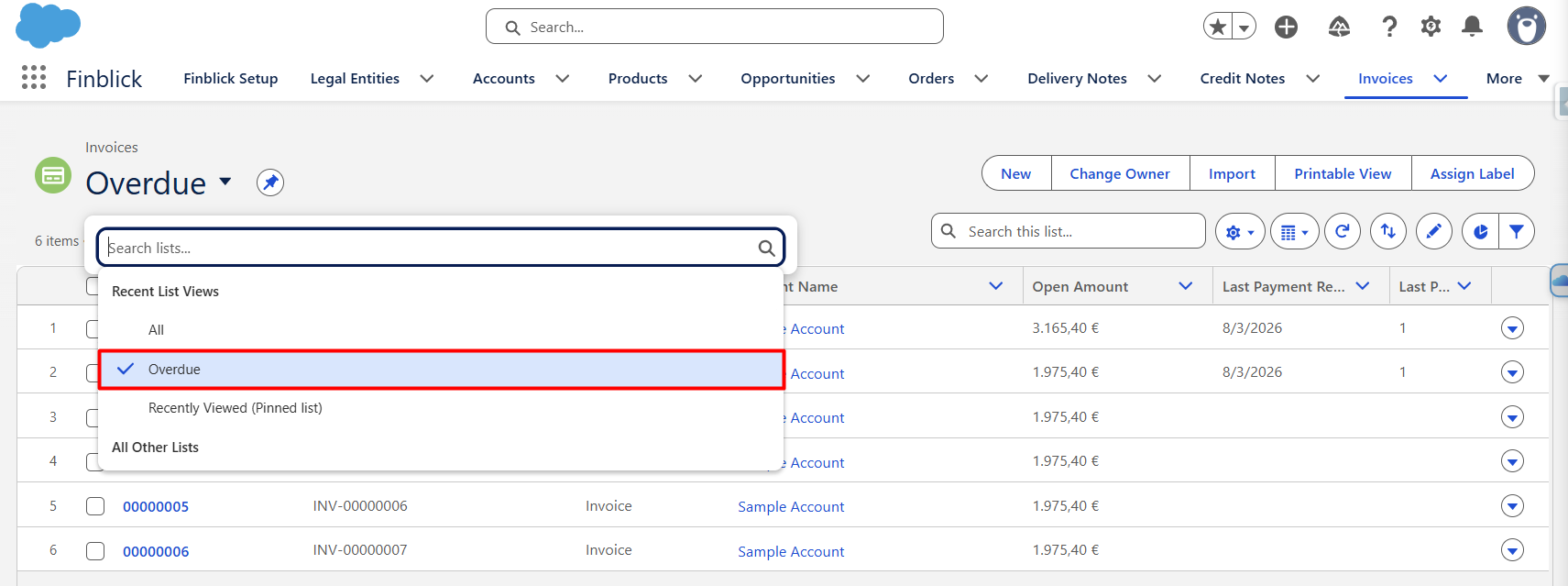
Integration with Banking #
When the Banking integration add-on is used, Charges can also be included in transaction matching.
The Charge field is available on Transaction Booking, and the transaction matching component includes a dedicated Charges tab:
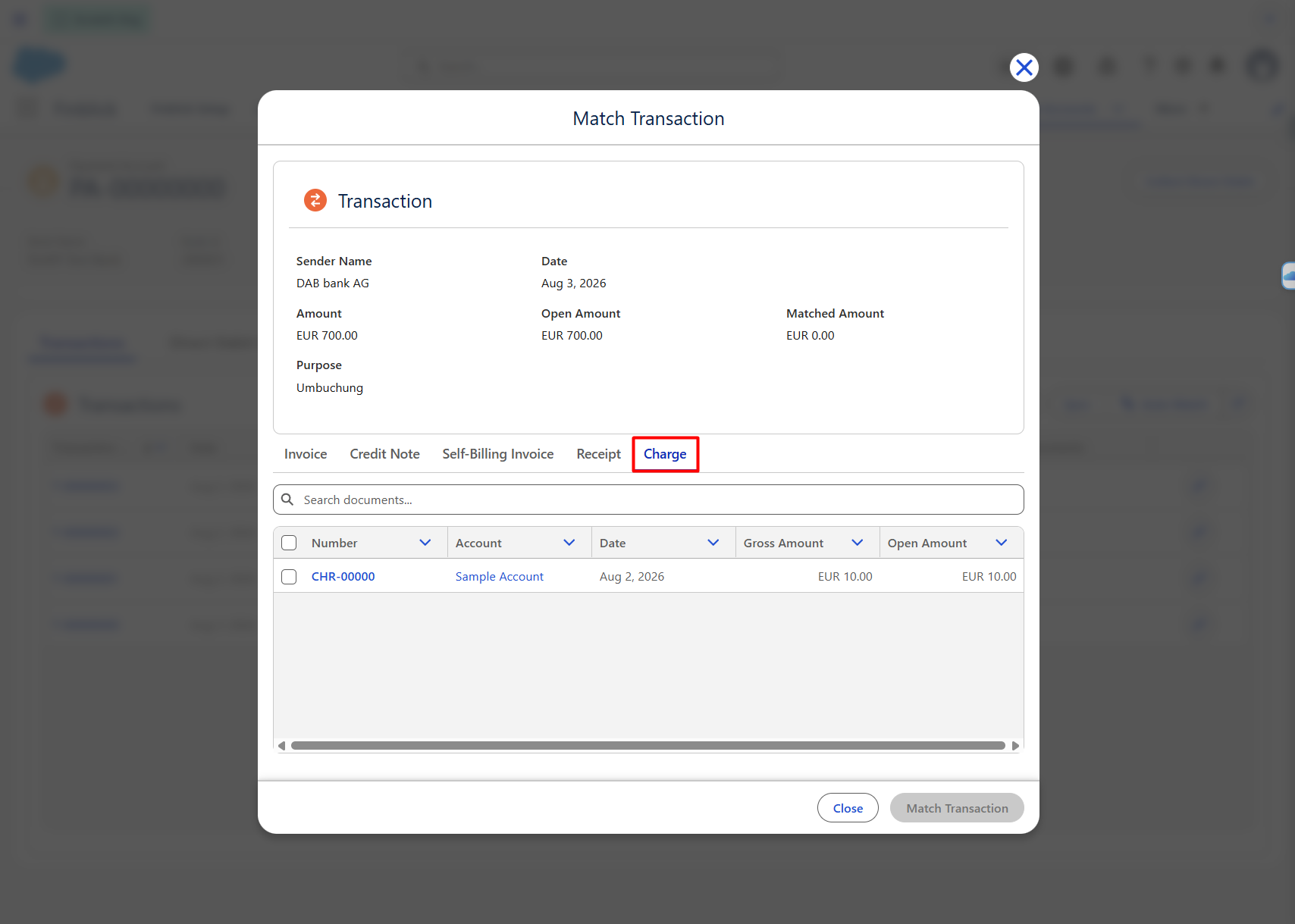
This allows reminder fees and other applicable Charges to be associated with incoming payment transactions.
Integration with DATEV Export #
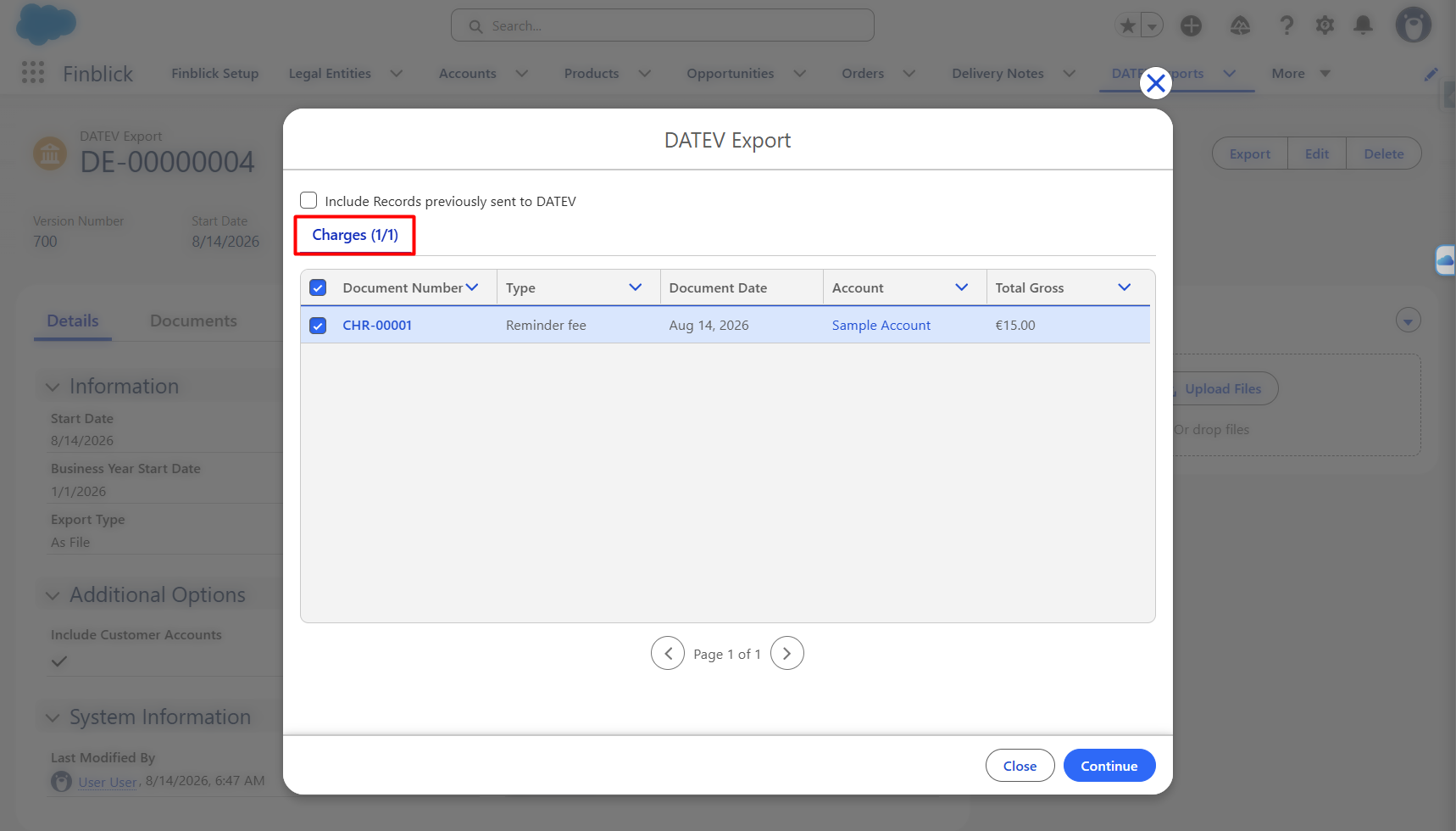
Charges are supported by the DATEV Export functionality.
A Charge field is available on the DATEV Export Item, allowing Charge records to be included in the DATEV export process:
Summary #
Payment Reminders help streamline the dunning process by automatically identifying overdue and partially paid invoices, applying configurable reminder levels, and generating standardized reminder documents. This reduces manual effort, improves payment follow-up, and supports more consistent and efficient accounts receivable management.


